Overview: Project List & Create a New Project
In the project list, you create new projects and find all projects that you have either created yourself or in which you are a member.
General information about list views can be found in the help article on list views.
Create a New Project
Follow these steps to create your first project in InLoox Web App:
-
Click the blue New Project button in the toolbar at the top left.
-
The new project appears in the project list with the default name New Project. The person who created the project is automatically assigned as the project manager.
-
Click on the project to open it and make further adjustments.
-
The project opens on the right side in split view. You can resize the split view by sliding the separator left or right. Alternatively, click the double-arrow icon at the top right to switch to fullscreen view.
-
At the top, you can adjust the project name.
-
To the right of the name, you can select the status of the project.
Manage the Project
The Manage tab opens by default. Beside it, you'll find tabs for Tasks, Mind Maps, Documents, Risks, Time, Planning, Financials, and Dashboard.
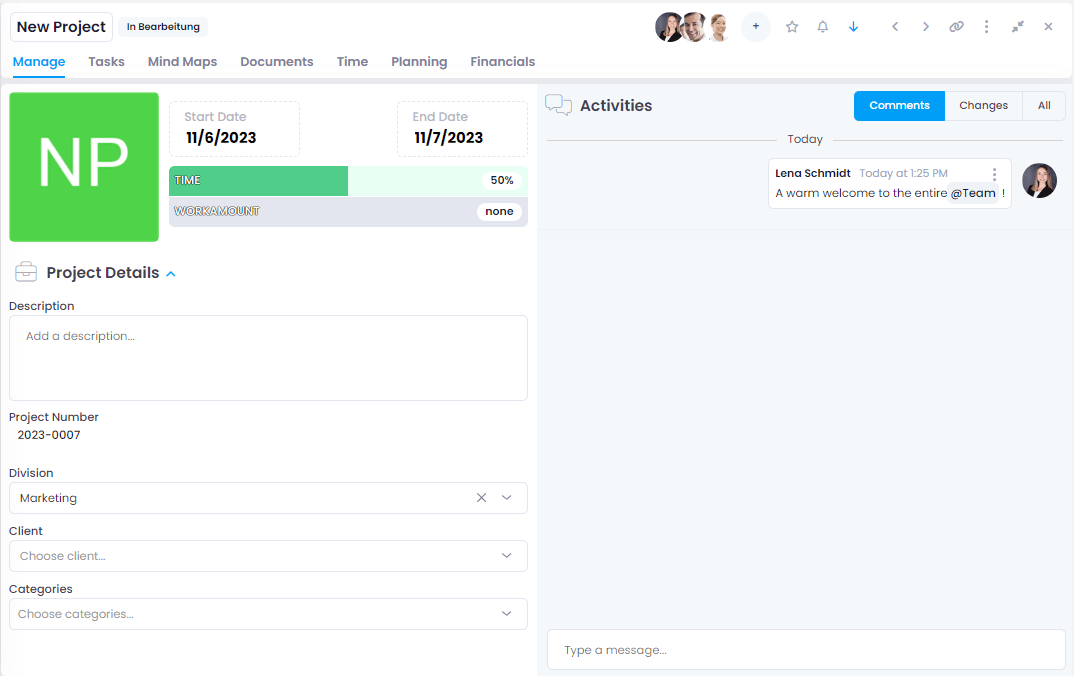
In the Manage tab, you can enter the most important project information:
-
Project image — Click the square field to upload an image. By default, InLoox uses the initials of the project name.
-
Start and end dates — Adjust the project timeline.
tipIf the start date is in the future, you may need to adjust the end date first, since the start date must be before the end date.
-
Project details — Enter a project description. With the InLoox AI Assistant, you can generate an automated description based on the project name.
-
Project number — Automatically generated by default. Administrators can customize the format in InLoox settings.
-
Division, client, and category — Select the responsible division, client, and category. If you enter a client that doesn't yet exist, InLoox offers to create a new one.
-
Linked Items — Connect a project to relevant items from current or other projects (tasks, documents, time entries, mind maps, budgets, or planning elements). Links are bidirectional.
-
Custom Fields — Specify additional data (e.g., detailed description, revenue potential, deadline). Administrators can customize these in InLoox settings.
Toolbar Functions
At the top right, you'll find a toolbar with additional functions:
- Plus icon — Add project members (project managers, employees, customers, partners, or additional contacts). You can also add user groups.
- Star icon — Mark the project as a favorite (listed in the main menu).
- Bell icon — Activate or deactivate notifications about changes.
- Arrow icon — Assign a priority (Normal or High).
- Left/Right Arrow — Navigate to the previous or next project.
- Bracket icon — Copy the project's link to the clipboard.
- Three vertical dots — Upload an image, archive, lock, or delete the project.
- Double-arrow icon — Switch between fullscreen and split view.
- X icon — Close the project and return to the project overview.
All information is saved automatically. You can close the project at any time and your changes will be stored.
Project Assessment
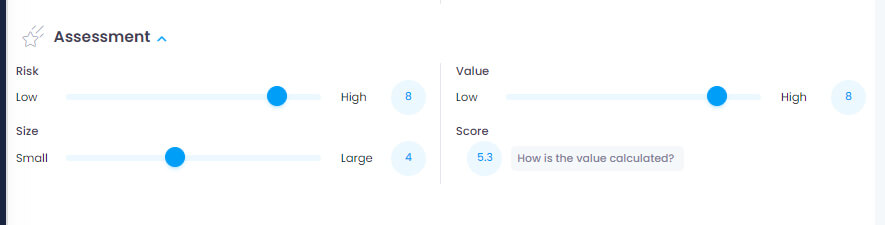
When you create a new project, you can evaluate it using three parameters, each on a scale of 1 to 10:
- Risk: 1–3 = Low, 4–6 = Medium, 7–10 = High
- Size: 1–3 = Small, 4–6 = Medium, 7–10 = Large
- Value: 1–3 = Low, 4–6 = Medium, 7–10 = High
To view or edit the project assessment, you need the corresponding permissions: Read project assessment / Edit project assessment.

Defining Parameters
Defining the values for project evaluation should be individually designed for each organization. We recommend developing a criteria catalog that allows classification based on objective standards.
Example for Size:
- Small: Max. 2 employees, max. €10k budget, max. 3 months
- Medium: Max. 4 employees, max. €50k budget, max. 6 months
- Large: 8+ employees, €100k+ budget, 6+ months duration
Example for Value:
- Low: Operational, regulatory obligation
- Medium: Opens permanent but limited optimization potential
- High: Strategic, affects top 5% key accounts
Overall Score & Dashboard
The overall score reflects a project's performance on a scale of 0 to 10, calculated as:
Overall Score = ((10 − Risk) + (10 − Size) + Value) / 3
Use the free standard dashboard "Project Value" to visualize risk, size, and value parameters in a matrix. Download the template from the InLoox resources page.
Show Overall Score Column in Project List
- Click Projects in the left menu.
- Click the three dots at the top right.
- Click Select columns.
- Search for "Overall Score."
- Drag the Overall Score column into the project list.
- Group projects by score by dragging the column into the grouping area.
You must be in Advanced mode to group by columns.
Activity Tracking
Activity tracking allows you to trace who changed what and when in your project. Find it in the Activities area under the Changes tab.

By default, the person who made changes and the timestamp are always recorded. The following entities are tracked:
Tasks: Task name, start/end dates, status, creator, assigned persons, estimated workload, description, planning assignments, project group, department, custom fields.
Documents/Links: File/link added, file/link name, custom fields.
Time Entries: Name, creator, start/end dates, duration, description, custom fields.
Projects: Creator, project name, status, start/end dates, description, project number, department, customer, portfolio, risk/value/size assessments, custom fields, deleted items.
Project Requests: Approval and rejection are recorded with automatic comments.
Filter and Sort the Project List
You can filter and sort the project list in several ways:
-
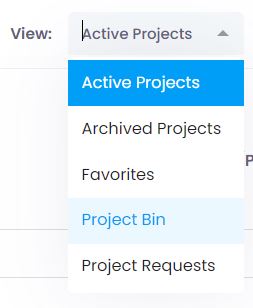
Under View (top right), filter by: Active Projects, Project Requests, Archived Projects, Project Bin, or Favorites.
-
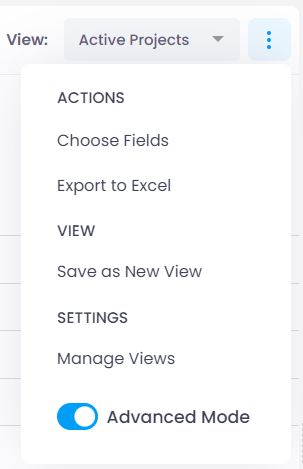
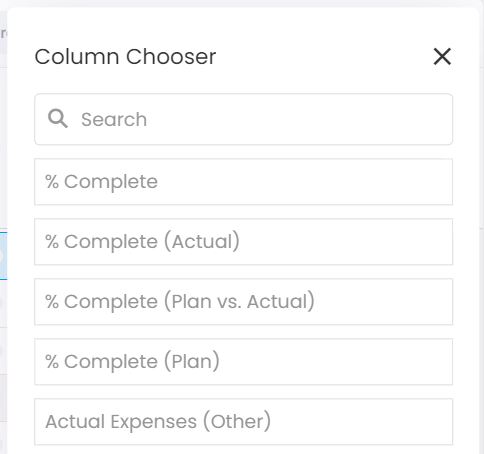
To customize columns, click the three-dot menu and select Choose Fields. Drag categories into position. Save the view using Save as New View.
-
Click a column name to sort in ascending or descending order.

Search for Projects
For long project lists, use the search function by entering a few letters of the project name or client number in the search field at the top right.

The search covers all projects regardless of the selected category. For example, searching for an archived project displays matches across all categories.
For a better overview, switch to Advanced mode and then to the table view.
Project Progress
In the project list, project progress is displayed as a percentage (if the Progress column is enabled). This value shows:
- 100% completed for status Completed, Accepted, or Rejected
- 0% completed for status Started or Offers
Project Members
All members assigned to a project are displayed with their profile picture in the top right corner.
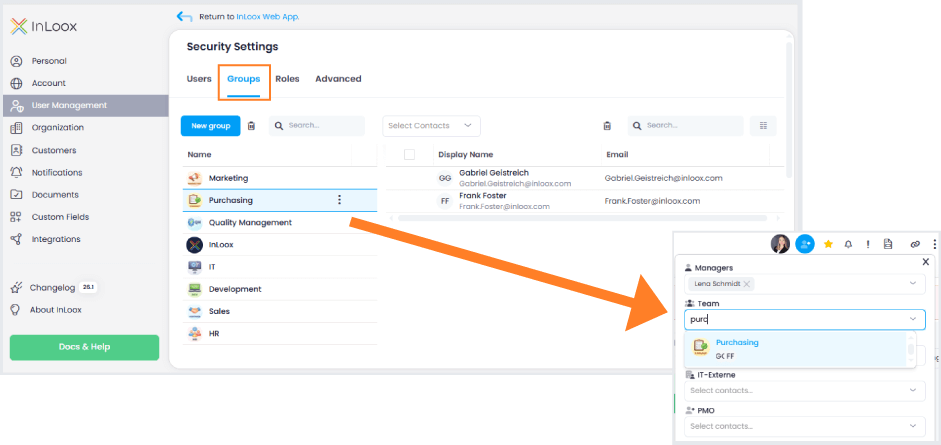
Using the plus icon, you can add contacts to the following roles:
- Project Manager
- Team
- Customers
- Partners
- Additional
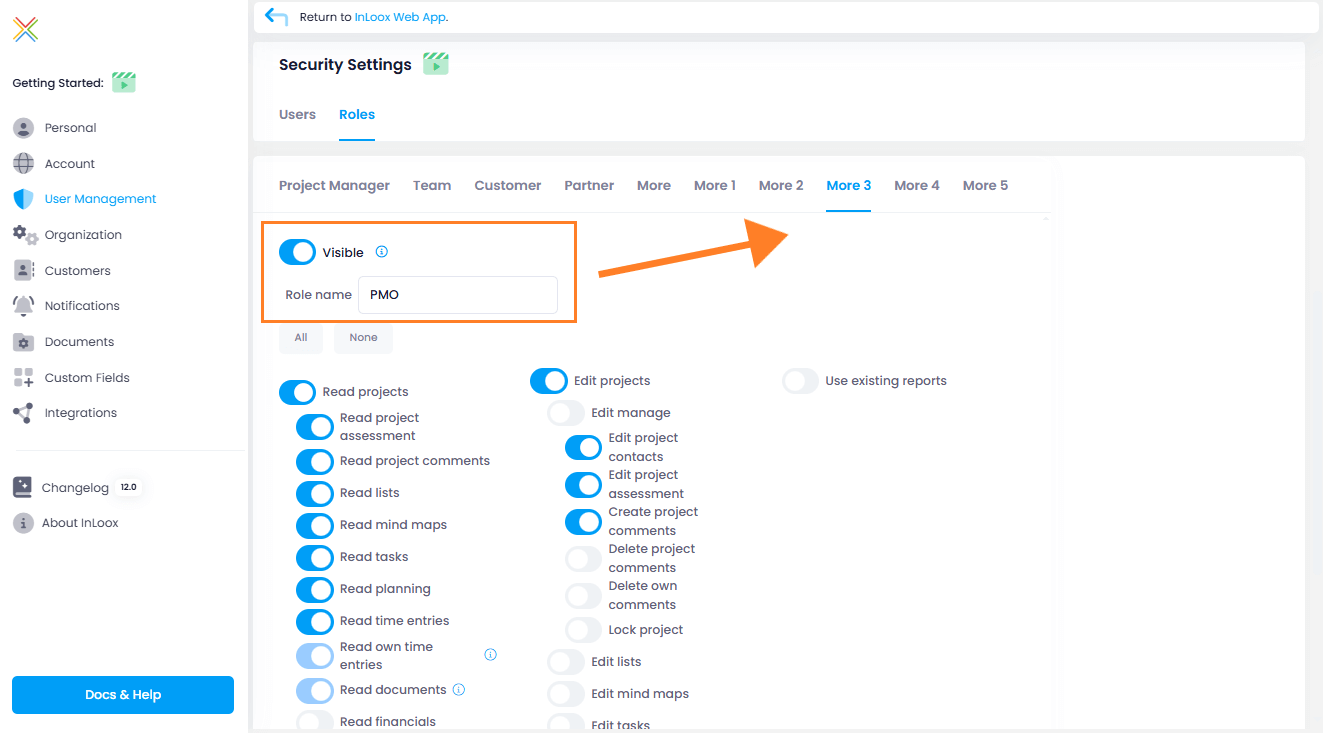
You can define up to 5 additional roles in the account settings (InLoox Enterprise Plus and Self-Hosted only, administrator rights required).
Project Client
Select a client from the dropdown menu or search by name or number. Since InLoox 11.8, you can type a new client name directly in the client field to add it to your client list.
Opening and Editing a Project
Click on a project to open and edit it. The Manage tab opens first. Use the other tabs to access project-specific areas: Tasks, Mind Maps, Documents, Time, Planning, and Financials.
