Save, Load, Import and Export Planning Templates
Working with planning templates is a convenient way to create project schedules quickly and easily. If you have recurring projects, it makes sense to save your Gantt plan as a template for other projects.
Save a New Planning Template
To save a self-created plan as a template:
- Create a Gantt plan that you want to use as a template.
- Click the Templates button on the right side.
- Select Save plan as template.
- Give the template a name and confirm with Save.
- You will find the planning template when you click on the Templates button.
Under Manage templates, you can delete, rename, and download templates.
Load an InLoox Planning Template
If InLoox plans have already been saved as templates in your database, you can use them for a new project:
- Create a new project or open an existing project.
- Navigate to the project planning.
- Click the Templates button on the right side. All existing planning templates in your database will be displayed.
- Select the desired template.
- In the Load planning template window, define the time frame for the plan:
- Select Automatic calculation if you want the start date to match the creation date.
- Select Manual calculation to set the start date yourself.
If planning elements with constraints have been saved in the template, InLoox will adopt these settings when importing. Constraints that may be in the past will be applied, and all planning elements will need to be adjusted manually.
If planning elements with constraints have been saved in the template, InLoox will not apply these settings. Start and end constraints are not applied, and all planning elements are imported with the constraint "Start = As early as possible." This simplifies further processing and is the recommended approach.
- Load resource data: The resource assigned to the task and the estimated effort are imported from the template. If unchecked, these fields will remain empty.
- Load completion data: The Completed marker will be transferred, and planning elements may be marked as completed in the new plan.
- Click OK. The planning template is now loaded into the Gantt chart.
Import a Microsoft Project Plan
Since InLoox 11.17 (March 2025), you can import MS Project plans as .mpp, .mpt, and .xml files:
- Create a new InLoox project or open an existing one.
- Click the Planning tab.
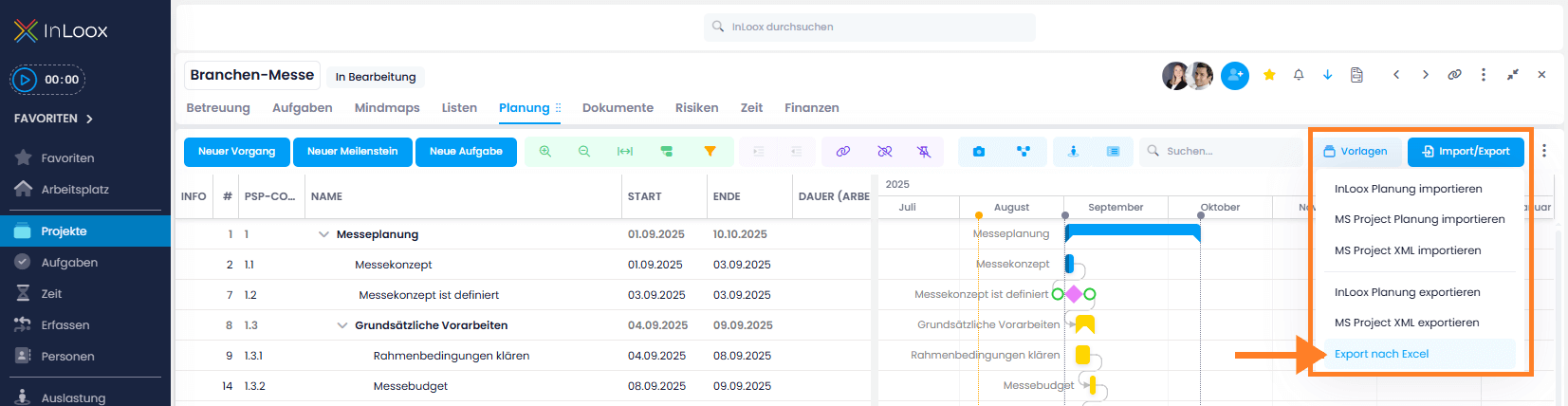
- Click the Import/Export button on the right.
- Select Import or export MS Project planning for
.mpp/.mptfiles, or Import or Export MS Project XML for.xmlfiles. - All available MS Project files are displayed. Select one and click Open.
InLoox imports the plan and you can edit it further in the Gantt chart.
- If you notice discrepancies between the InLoox and MS Project plans after import, this may indicate a planning error or conflict in the MS Project plan.
- When importing, the working time calendar from the MS Project file is also transferred and stored as a new InLoox working time calendar.
Import an InLoox Planning Template
You can find numerous InLoox planning templates for download on the InLoox website. Import InLoox planning files (.inlooxplanning or .xml) as follows:
- Create a new project or open an existing project, then navigate to Planning.
- Click the Import/Export button on the right and select Import InLoox Planning.
- Select the corresponding file from your PC, file server, or document folder, and click Open.
- The imported planning elements will load in the Gantt chart. This may take a few seconds.
Export a Planning Template
When you export a plan as a template, you save it to your server or local storage. You can export a Gantt plan as:
- An
.inlooxplanningfile - A Microsoft Project
.xmlfile - A Microsoft Excel
.xlsxfile
- Click the Import/Export button on the right and select Export InLoox Planning, Export MS Project XML, or Export to Excel.
- The file will download to your device.