Add Tasks to the Project Planning (Gantt)
It is best to add project tasks to planning elements (activities) only after you have set the logical and chronological order along with any constraints. The start and end dates are initially taken from the activity to which the task is assigned. If the task's schedule differs from the activity's dates, you can edit the task in the side panel of the Gantt chart by selecting the task and clicking the pencil icon.
You have several options for assigning project tasks to planning elements in the Gantt chart:
- Assign existing project tasks to a planning element using drag and drop.
- Create tasks manually, as described below.
Add New Project Tasks Manually in the Planning
If no project tasks exist yet, create new tasks as follows:
- Select the activity or milestone to which you want to assign the new task.
- Click the blue New Task button.
- The new task appears. Enter a name directly in the planning list. Alternatively, open the task (click the pencil icon next to the element name, or right-click and select Edit) to enter details in the side panel.
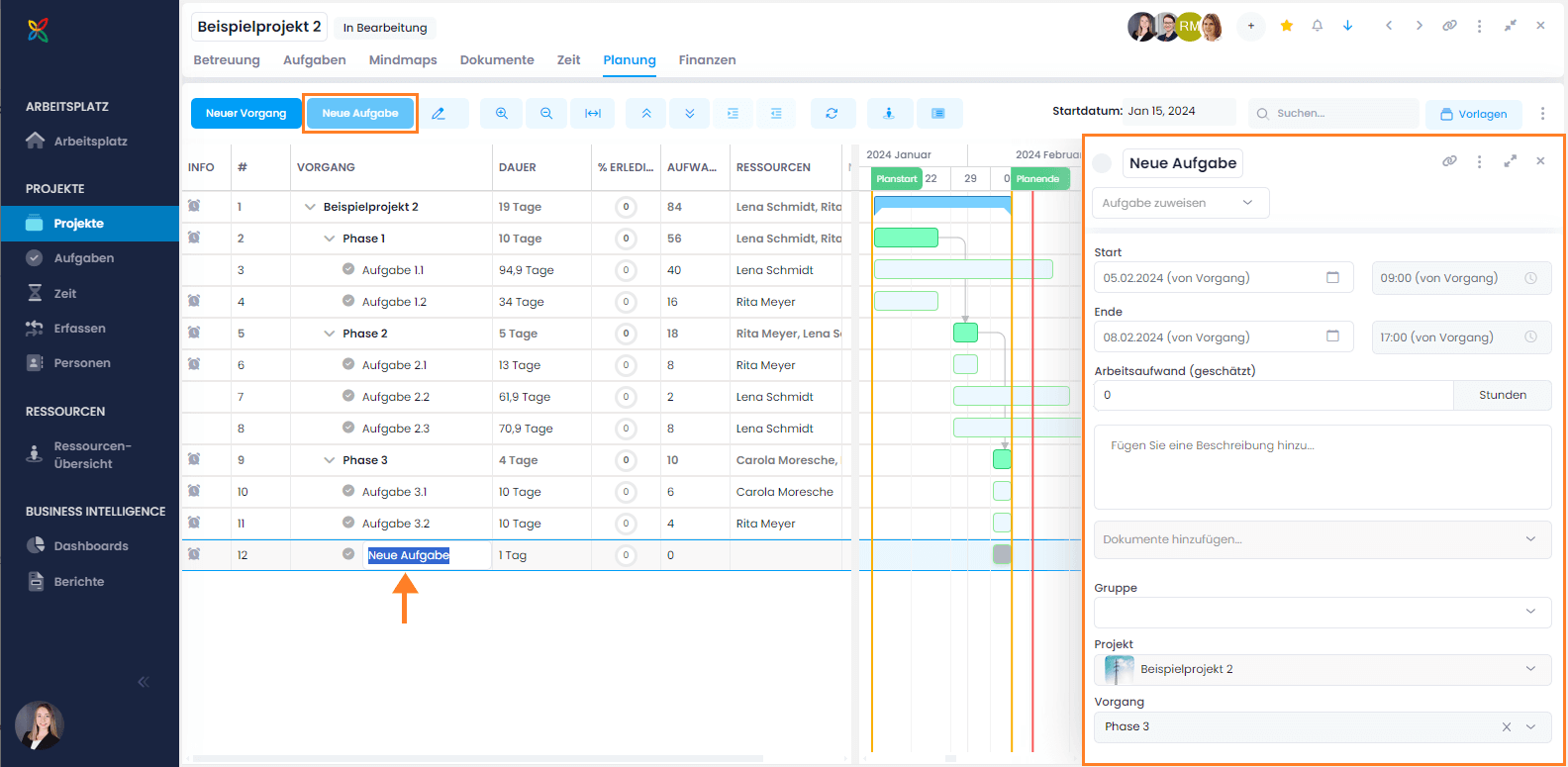
Start and end dates are initially taken from the parent activity. As of version 11.11, new tasks under activities also automatically adopt the duration of the parent activity as effort. Each new task receives this duration as its effort value, which is relevant for the workload display and resource utilization.
You can choose to show all, open, or no tasks in the planning:
