Dependencies Between Planning Elements
When you create dependencies — logical relationships between planning elements — you build a project schedule. To do this, you need to edit the planning elements and add details such as start and end dates, duration, the type of dependency, and, if necessary, set constraints.
You can edit planning elements in the planning list as well as in the Gantt chart.
Create Dependencies
To create dependencies, you need to link planning elements. Dependencies can be established between all planning element types (activities, summary activities, milestones).
You have several options for creating a dependency:
1. Create Dependencies Manually
You can create dependencies manually in the Gantt chart:
- Hover the mouse over a planning element in the Gantt chart until a circle appears to the right and left of the element. Which circle you choose (right or left) determines the type of relationship. For more information, see Types of Dependencies.
- Click on the circle and drag the mouse to the planning element you want to link to. A circle will also appear to the right and left of that element.
- Release the mouse cursor at the target planning element and the desired circle. A connecting line will appear between the two planning elements, indicating they are now linked.
2. Create Dependencies Automatically
You can also automatically link planning elements that depend on each other:
- Select a planning element (activity, summary activity, or milestone).
- Hold down Ctrl and select the element that should depend on the first one.
- Click the Add dependencies between activities button (chain link icon) in the top menu bar.
Automatically Linking Multiple Elements
- Hold down Ctrl and select all activities, summary activities, or milestones you want to link.
- Click the Add dependency between tasks button (chain link icon) in the top menu bar.
InLoox will automatically create a default dependency of the type "As soon as possible", based on the earliest possible start in the Gantt plan.
If you want to define other dependency types (e.g., Finish-to-Start, Start-to-Start), constraints, or time lags, you can edit the dependency afterward.
InLoox will notify you of constraint violations or inapplicable dependencies and will try to resolve these conflicts automatically, if possible.
3. Create Dependencies Using the "Predecessor" and "Successor" Columns
You can also create dependencies directly in the planning table using the Predecessor and Successor columns:
- Make sure the "Predecessor" and "Successor" columns are visible in the planning view. To learn how, see Add Columns to the Planning List.
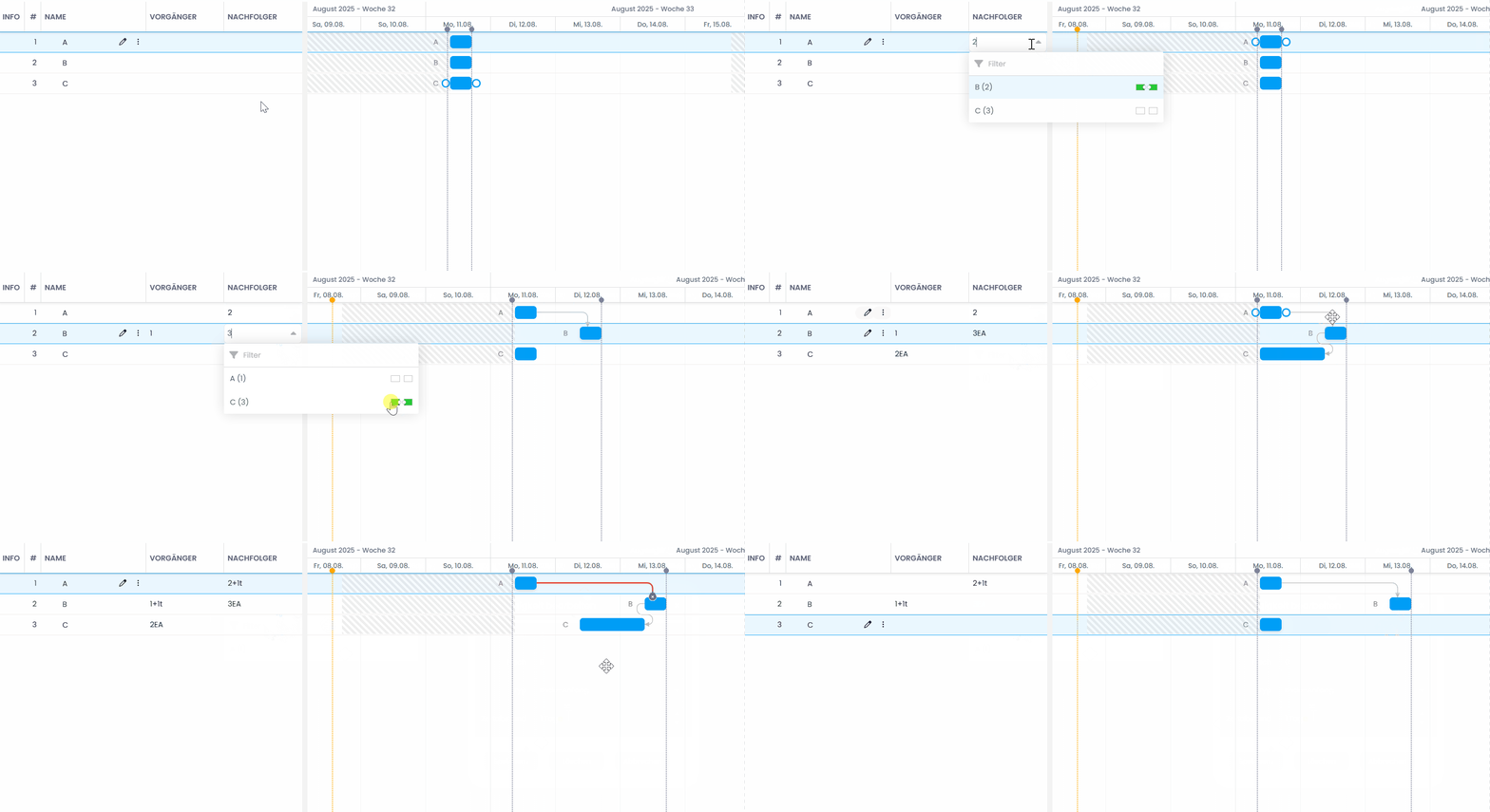
- Click into the "Successor" field, for example, and select from the dropdown the planning element that should follow (and depend on) the selected item.
- You can edit the dependency directly in the dialog that opens and, for example, change the type of dependency. For more information, see Edit Dependencies.
Edit Dependencies
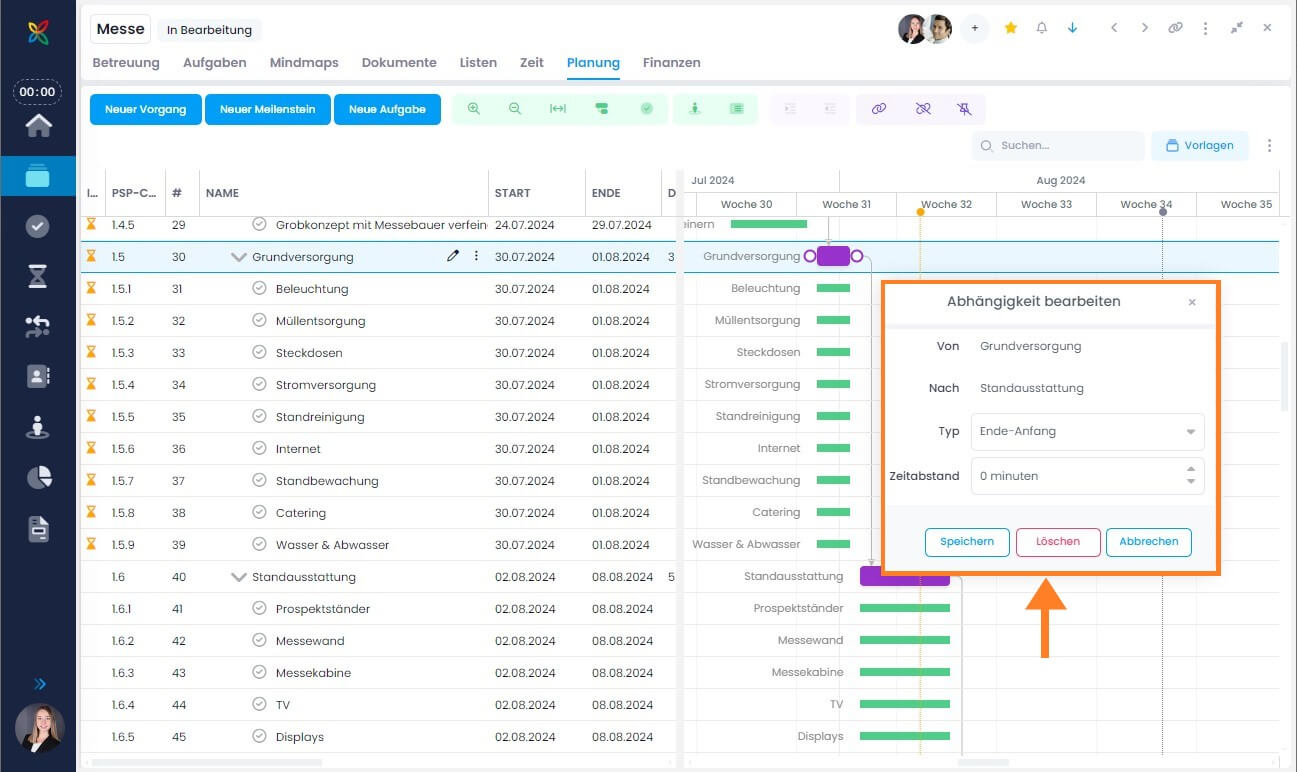
Click on the line connecting two linked elements in the Gantt chart.
The dependency editor opens, where you can make changes such as changing the type of dependency or entering a time lag.
Alternatively, you can display the Predecessor and Successor columns in the planning view. To learn how, see Add Columns to the Planning List.
In the corresponding field, you can define the type of dependency by positioning the green square indicators either to the left (Start = S) or to the right (Finish = F) of the element.
Example: For a Finish-to-Start dependency, the field will show the number (from column #) of the dependent planning element followed by the letters FS (Finish-Start).
You can also define a time lag. This can be done either in the Dependency Editor or directly within the table cell by entering the offset in the following format: add a plus or minus sign with a time unit (e.g., +1d for one day lag) next to the element number.
Overview: Types of Dependencies
There are four types of dependencies for linking planning elements:
Finish-to-Start (FS)
This dependency establishes a relationship between the end of the predecessor and the start of the successor. The successor can only start once the predecessor is completed.
Example: The activity "Event Marketing" can only start once the milestone "Kick-off Meeting" has been successfully completed.
Start-to-Start (SS)
This dependency restricts the start of the successor — it can only begin once the predecessor has started as well.
Example: The successor activity "Partner Event Program" starts at the same time as the predecessor activity "Customer Event Program." The successor cannot start unless the predecessor has started.
Finish-to-Finish (FF)
This dependency restricts the end of the successor — it can only be completed when the predecessor has been successfully finished.
Example: The predecessor "Customer Event Program" must be completed by the end date of the successor "Partner Event Program," since both programs need to be finalized for the event website.
Start-to-Finish (SF)
This dependency type is only useful for work-back schedules. It links the start of the predecessor with the end of the successor.
Example: A company plans to shut down a server on a certain date and move data to a new datacenter. The predecessor "Full-Time Operation New Server" must start before the successor "Shut Off Old Server" can be completed.
Set the Start Date and Duration of Planning Elements
After linking planning elements, you can set their start dates and duration. The end date of activities and summary activities is determined by their start date and duration. Milestones only have a start date.
- Select the planning element, right-click to open the context menu, and click Edit. A side panel opens.
- In the side panel, find the Constraint field. Select the constraint type and date. For example, select Start – On and set the start date.
- Adjust the end date and duration of activities and summary activities. Set the Duration by adjusting the days or by entering the end date. Alternatively, click the calendar icon to select the end date.
- Display the duration in the project list by showing the Duration column.
InLoox has three default calendars: 24/7 (continuous operation), Standard (Monday–Friday, 8 AM–4 PM), and Weekend (Saturday and Sunday, 24h). InLoox uses the Standard calendar by default. To change calendar settings, go to InLoox Settings > Working Times.
Set the Duration in the Gantt Chart
It is advisable to zoom in to show individual days for comfortable editing.
- Click the Zoom In or Zoom Out button at the top to adjust the Gantt chart. Or hold Ctrl while using the scroll wheel to zoom in or out.
- Move the mouse over the activity or summary activity. Navigate to the beginning or end until an arrow appears. Drag it left or right to expand or contract the duration.
- To change the start or end date without changing the duration, move the activity bar in the Gantt chart by clicking and dragging it to the desired date.
Delete Dependencies
To delete a dependency, you have two options:
- Select the relevant activities in the Gantt chart (hold down Ctrl) and click the Remove dependency icon (broken chain link) in the top navigation bar.
- Double-click the connection line between the activities to open the Edit dependency window. Click the Delete button to remove the dependency.