Add Lag to Planning Elements
In certain situations, you may want to include time to account for delays, wait times, or external factors that affect your project. In this case, you can add lag to your project plan. Lag times can also serve as a kind of time buffer between planning elements.
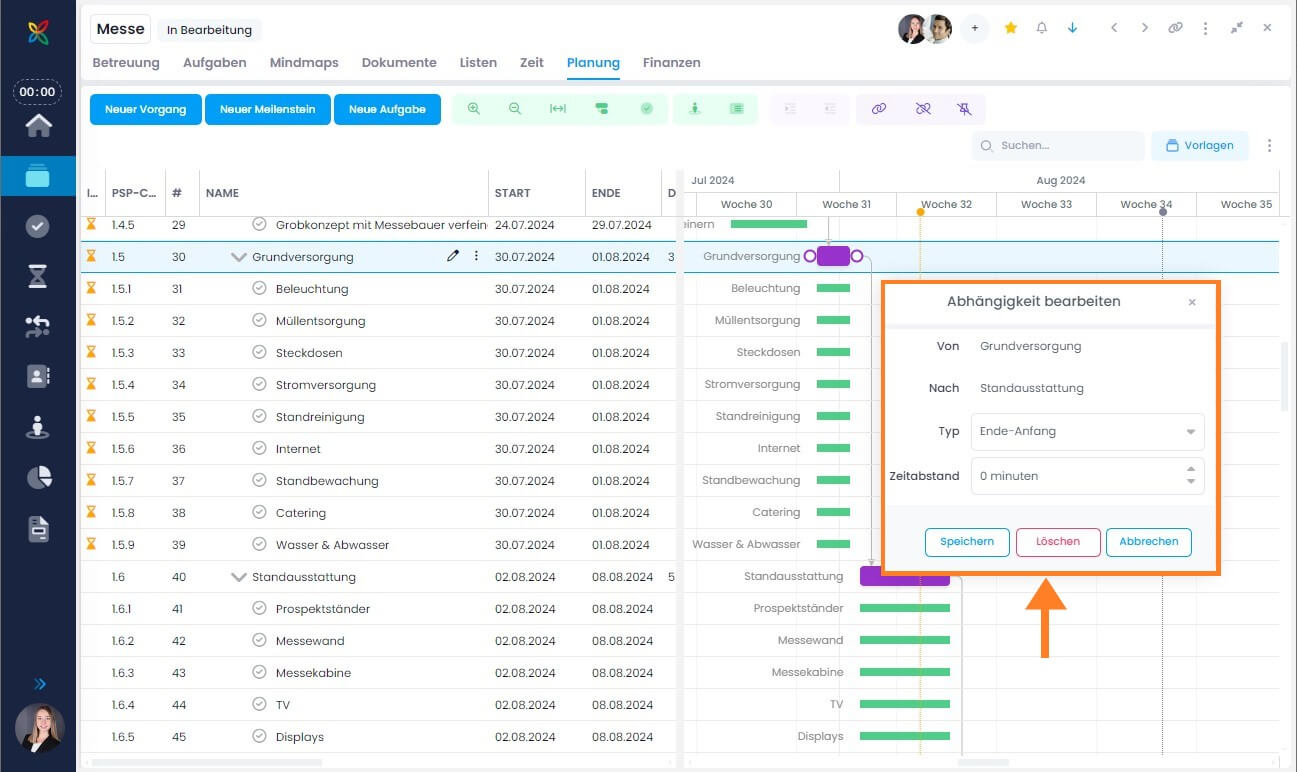
- Open the dependency editor by double-clicking on one of the connecting lines between two planning elements.
- Under Lag, enter the days, hours, or minutes you want to set as a buffer. As you enter or change the value, you can observe the effects dynamically and in real time in the Gantt chart — the bars shift accordingly.
- Click Save.
Lead Times
You can also set lead times — for example, if the subsequent planning element should start 1 day before the predecessor ends. Simply enter a minus sign before the lag value.
Alternatively, you can enter this information directly in the table using the Predecessor and Successor columns. After the dependent element number, simply add the corresponding suffix such as +1d for one day of lag.