Auto-Save, Undo & Redo
Auto-Save in the InLoox Gantt Chart
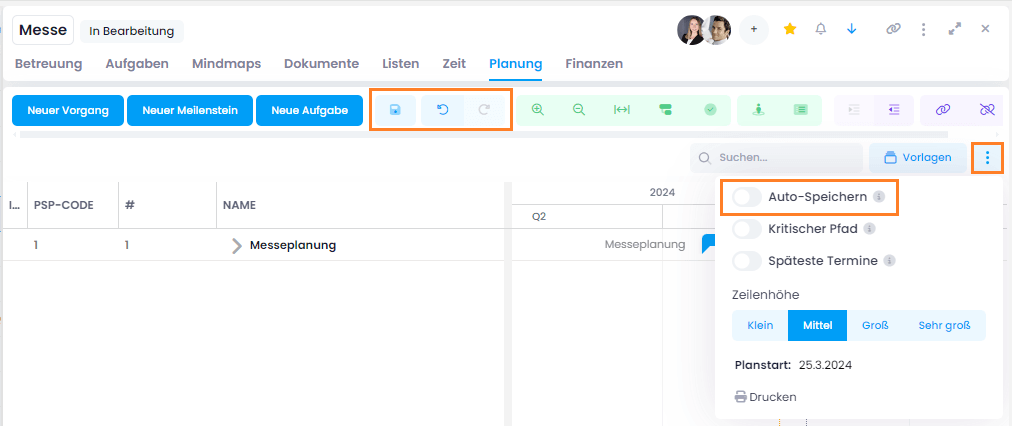
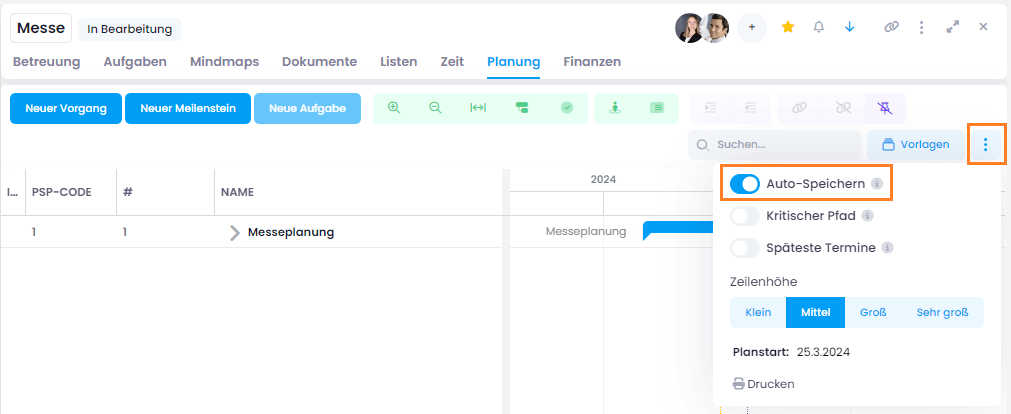
The auto-save function can be found in the three-dots menu on the right and is enabled by default. This means you can leave the current project plan and switch to another project, and InLoox will automatically save all the work you have done in the Gantt chart.
Save Manually & Undo/Redo
If you disable the auto-save function, you can manually click the Save button whenever you need to. When you leave the current project plan, InLoox will ask whether you want to save your changes. You may keep or discard them.
With auto-save disabled, an Undo and Redo button appear in the menu. This allows you to freely make changes in your Gantt chart and undo or redo them as needed.
warning
Clicking the Save button will prevent you from undoing changes made before the save.