Timeline in Gantt Chart
Available since InLoox 11.14 (September 2024)
A timeline is available in the project planning above the Gantt diagram. You can pin any activity, summary activity, or milestone from your Gantt chart to the timeline. This helps you visualize the most important phases or milestones in your project.
The timeline feature is also available in the project list as a multi-project timeline view.
Show the Timeline in Project Planning
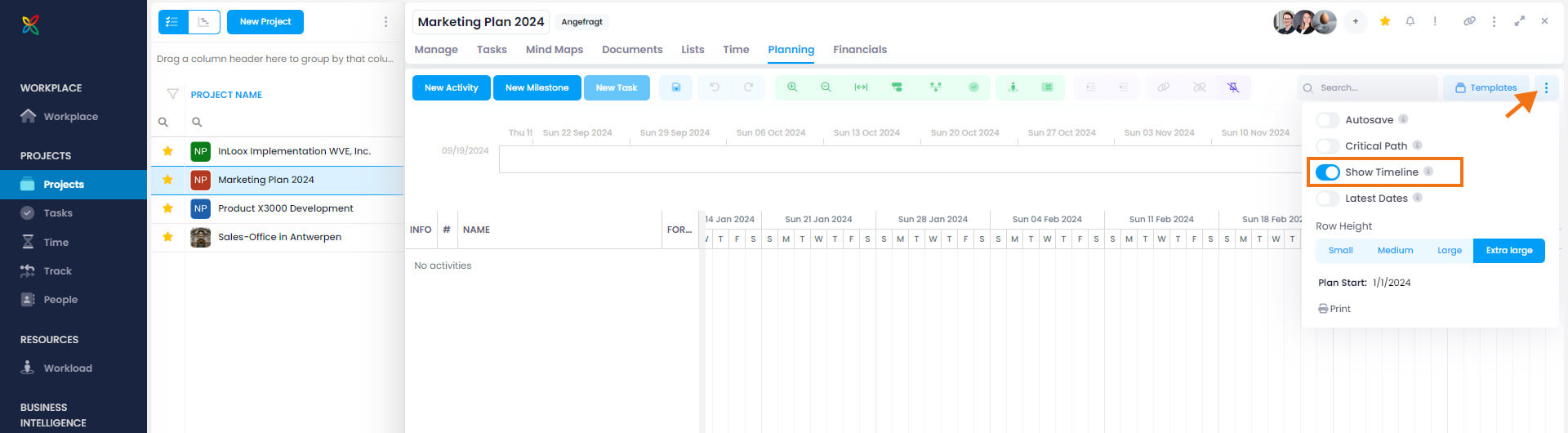
- In InLoox Web App, open a project and click Planning.
- Click the three dots on the right above the Gantt chart.
- Activate Show timeline. The timeline appears above the Gantt chart.
Pin Planning Elements to the Timeline
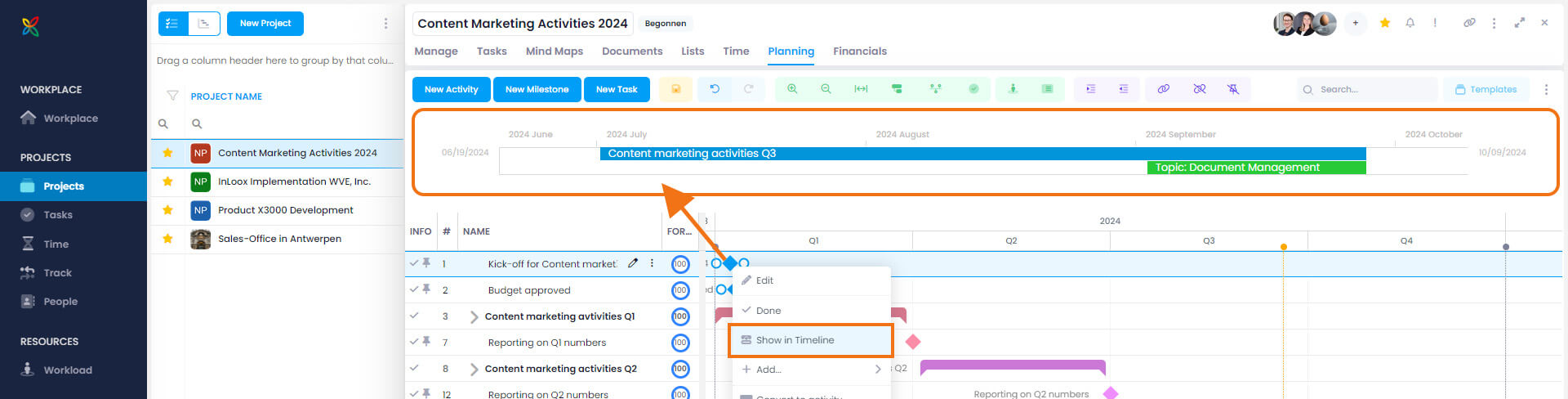
- Select a planning element (e.g., a milestone) and right-click on it.
- In the context menu, click Show in timeline.
- The planning element is now pinned to the timeline.
- To remove an element from the timeline, right-click on it in the Gantt chart and select Remove from Timeline.
Tips for the Timeline
- When you click an element in the timeline, InLoox automatically marks and navigates to the corresponding planning element in the Gantt chart.
- The timeline always shows the time frame spanning from the earliest pinned element to the one with the latest date.
- Add the column Show in Timeline to the Gantt chart. Elements pinned to the timeline will have a check mark. Toggle the check mark to quickly add or remove elements — especially useful for tablet and smartphone users.