Critical Path
Especially with complex project plans, showing the critical path can increase transparency and help you maintain a clear overview.
The critical path highlights the planning elements that are crucial for meeting your deadline. Delays along the critical path can lead to scope creep and potentially derail your scheduled project deadline.
To display the critical path, your plan must already contain planning elements that are connected with dependencies.
Show the Critical Path
- Open the project and the Gantt chart.
- Click the three vertical dots on the right.
- Activate the Critical Path slider.
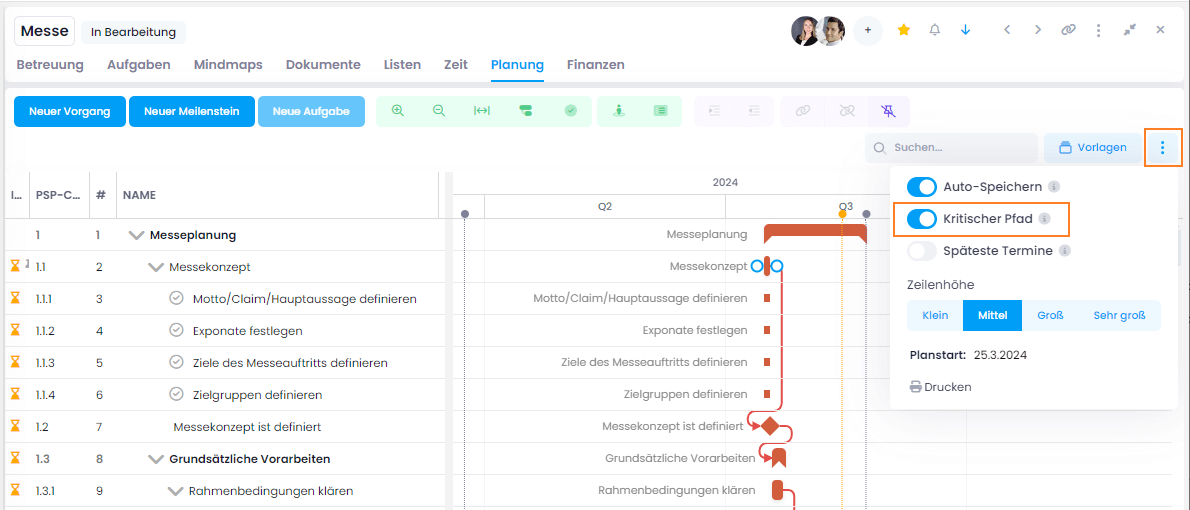
The planning elements along the critical path are marked in red in your Gantt chart.
Latest Dates
Available since InLoox 11.13
Using the Latest Dates slider, you can display small gray markings that indicate the maximum time until which you can postpone planning elements without jeopardizing the critical path and causing time-critical issues.