Project List — Performance Indicator Columns
Performance columns in the project list use traffic-light colors (green, orange, red) to visualize whether key project values are within, slightly above, or significantly above their planned targets. The performance indicators are calculated automatically based on data entered in the project.
The performance indicator columns are:
- Cost performance
- Progress performance
- Resource cost performance
- Revenue performance
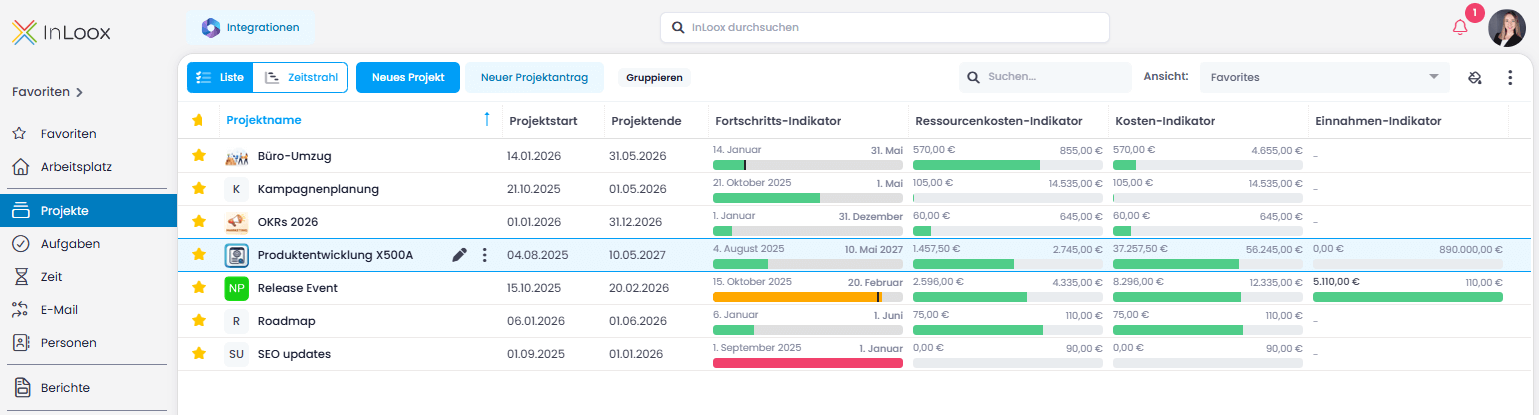
Display and Save Performance Columns
- Click the three dots in the upper right corner (or right-click a column header) and select Choose columns.
- Choose the performance columns you need, or search for "performance."
- Drag the selected columns into the list.
- To remove a column, drag it out and release.
- If you accidentally remove a column, click the undo button in the green bar at the lower left.
- To save this view, click the three dots and select Save as New View.
- Name the view (e.g., "Project performance view") and click Save.
Cost Performance
What it shows: Compares actual project costs with planned project costs.
- 🟢 Green: Actual costs are below planned costs
- 🟠 Orange: Actual costs exceed planned costs by 0.01%–5%
- 🔴 Red: Actual costs exceed planned costs by more than 5.01%
Required data: Planned project expenses (CapEx or OpEx) and actual project expenses (CapEx or OpEx).
Progress Performance
What it shows: Evaluates whether the remaining project duration is sufficient to complete the effort of overdue tasks.
- 🟢 Green: Overdue task effort can be completed within the remaining time
- 🟠 Orange: Overdue task effort exceeds remaining time by 0.01%–5%
- 🔴 Red: Overdue task effort exceeds remaining time by more than 5.01%
Required data: Project start date, project end date, task effort, and task due dates.
Resource Cost Performance
What it shows: Compares recorded effort from time tracking with planned effort from tasks.
- 🟢 Green: Recorded effort is at or below planned effort
- 🟠 Orange: Recorded effort exceeds planned effort by 0.01%–5%
- 🔴 Red: Recorded effort exceeds planned effort by more than 5.01%
Required data: Planned effort from project tasks and actual effort recorded via time tracking.
Revenue Performance
What it shows: Compares actual revenue with planned revenue.
- 🟢 Green: Actual revenue is higher than planned revenue
- 🟠 Orange: Actual revenue equals planned revenue
- 🔴 Red: Actual revenue is lower than planned revenue
Required data: Planned benefits and actual benefits from project financials.
By maintaining complete and up-to-date financial, scheduling, and effort data, the performance indicator columns provide an immediate visual overview of project health.