Permissions
General information
- Reading and editing permissions are defined in the InLoox Web App settings.
- Permissions assigned to a person are cumulative — each person receives additional rights on top of their user rights via division and role permissions.
- Sections for which a person lacks permissions are hidden from that person (since InLoox 11.15).
- Except for the Project Manager role, role names can be changed (since InLoox 12).
- Except for the Project Manager role, roles can be hidden to control which roles people can take on in projects (since InLoox 12).
Division permissions are only available in the InLoox Enterprise, InLoox Enterprise Plus, and InLoox Self-Hosted editions.
InLoox permissions — an example
Rita Meyer is the head of the marketing department and responsible for all marketing projects. She also collaborates with sales and needs visibility into IT product development projects.
Her permissions are structured as follows:
- Global user permissions: Limited — she can create projects, edit existing reports, and generate reports.
- Division permissions: Full reading and editing permissions for Marketing projects. Reading permissions for Sales (comments, lists, mindmaps, tasks, planning, documents) and IT (planning only).
- Role permissions:
- As Project Manager: Full editing rights for budgets, manage page, lists, mindmaps, tasks, planning, time tracking, and documents.
- As Team member: Can read and edit project tasks; read planning and documents.
User permissions — global
Global permissions give a person reading and editing rights across all areas and projects. Keep global editing permissions minimal. At minimum, assign:
- Create projects — allows the person to create projects and automatically become project manager, or
- Create project requests — allows the person to submit a project request for approval.
For the project request workflow to function, at least one other person must have the Edit project requests permission to approve requests.
Assigning global user permissions
- In InLoox Web App, click on your profile picture in the upper-right corner.
- Click Account Settings.
- Click Permissions on the left.
- Click on the Users tab.
- Select a person (multi-select is available).
- Under the Global tab, activate the desired reading and editing permissions.
User permissions — divisions
People can receive additional permissions based on the project division. This allows members from other divisions to gain reading permissions without needing a role assignment in the project.
For division permissions to work:
- Create divisions in the InLoox settings.
- Assign each project to a division on the project's manage page.
- Assign permissions to users for individual divisions.
Division permissions are based on the project's assigned division, not on the person's own division affiliation. A project can only be assigned to one division.
Assigning division permissions
- In InLoox Web App, click your profile picture in the upper-right corner.
- Click Account Settings.
- Click Permissions on the left.
- Click on the Users tab and select a person.
- Under the Divisions tab, select a division from the drop-down menu.
- Activate the desired permissions for the selected division.
- Remove the division and select another to assign different permissions per division.
Role-based permissions
Each person gains additional permissions through role assignments in projects. You can define the permissions for each project role according to your needs.
For InLoox Enterprise Plus and InLoox Self-Hosted editions, five additional custom roles can be defined.
Best practice recommendations
- Project Manager — Full read and edit rights. Consider restricting: Delete project comments, Allow backdating in times, Edit budgets, Delete projects.
- Team — Read and edit permissions for tasks, lists, mindmaps, documents, own time entries, and project comments.
- Customer — Read-only permissions for projects, tasks, planning, and budgets.
- Partner — Limited editing permissions for tasks and project comments.
- More — Use for department heads or management.
Assigning role permissions
- In InLoox Web App, click on your profile picture in the upper-right corner.
- Click Account Settings.
- Click Permissions on the left.
- Click on the Roles tab.
- Select a role (e.g., Project Manager).
- Activate the desired permissions for that role.
Role permissions apply to all projects in your InLoox account.
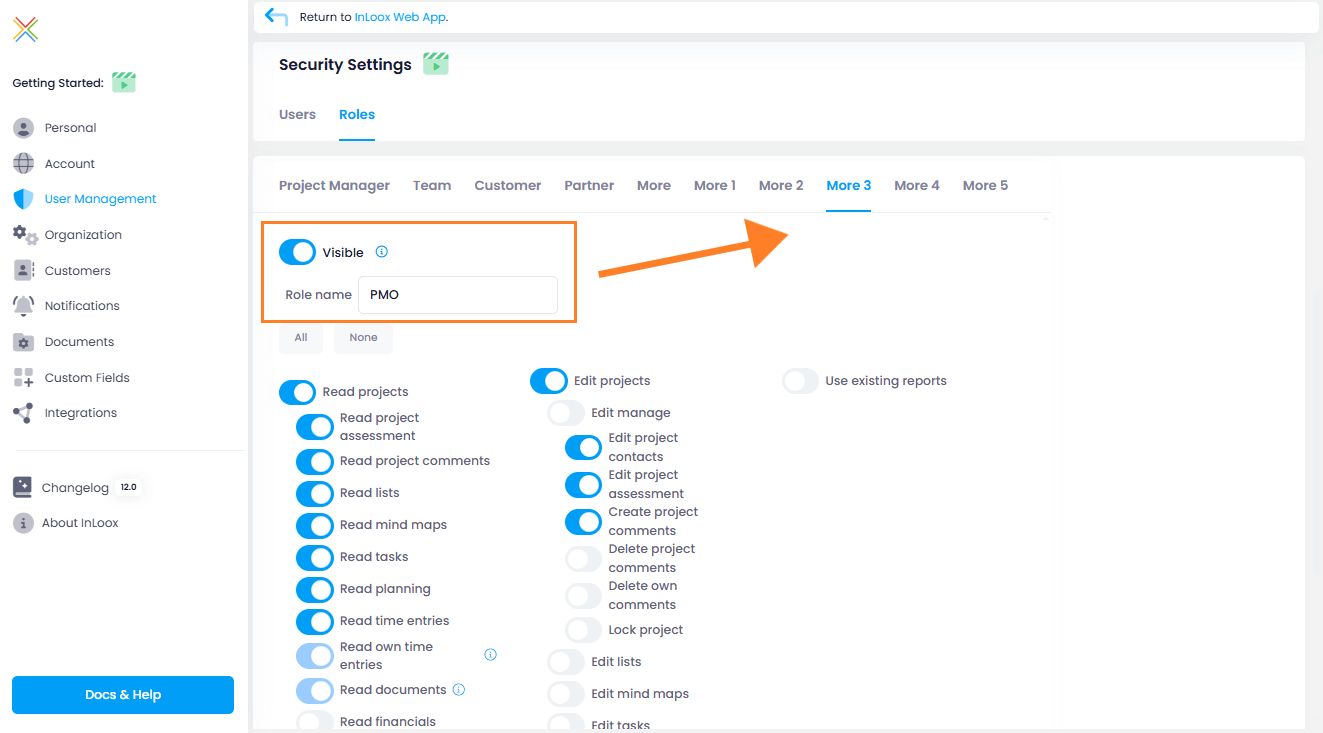
Additional custom roles
For InLoox Enterprise Plus and InLoox Self-Hosted accounts, admins can define up to 5 additional project roles:
- Click on your profile picture and then on Account Settings.
- Click on User Management. In Security Settings, click the Roles tab.
- Select one of the five More roles and configure it by:
- Making it visible (only visible roles can be used in projects)
- Giving it a new name
- Assigning reading and editing permissions
User groups for projects
You can create user groups to quickly assign multiple people to project roles at once. User groups simplify managing permissions for teams of people who frequently work together.