Calendar and Contact Synchronization between MS365 and InLoox
To configure the following settings, you must be both an InLoox administrator and an Office 365 administrator.
Contact synchronization
With global contact synchronization, all contacts available in the Microsoft 365 tenant are synchronized to InLoox. Stored data such as name, email address, telephone number, etc. are transferred. In InLoox, you can find these contacts in the People menu item.
To set up global contact synchronization:
- In InLoox Web App, click on your profile picture in the upper-right corner.
- Click on Account Settings.
- Click on Integrations.
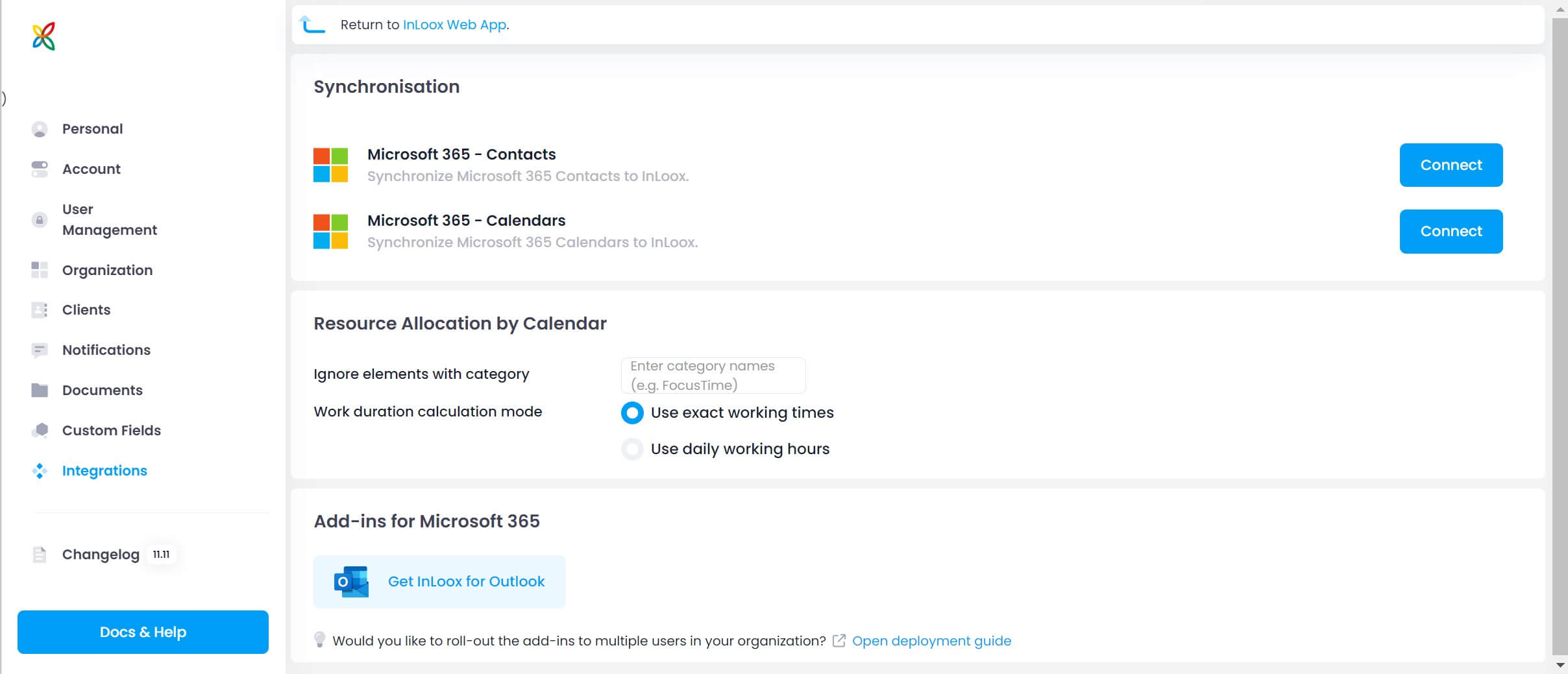
- Under Microsoft 365 - Contacts, click the Connect button on the right.
After the initialization of contact synchronization, contacts are synchronized daily. Changes to contacts within Microsoft 365 are automatically updated in InLoox.
Calendar synchronization
With Microsoft 365 calendar synchronization, appointments from the Outlook calendars of fully licensed users (read & write) are taken into account for the resource overview, enabling a realistic assessment of availability and workload.
The following data is transferred from the calendars:
- Start, duration, and end of the appointment
- Category of the appointment (if assigned)
The title of the event, content/description, and other participants are not transferred. Only workload-relevant data is synchronized, ensuring data security.
To set up global calendar synchronization:
- In InLoox Web App, click on your profile picture in the upper-right corner.
- Click on Account Settings.
- Click on Integrations.
- Under Microsoft 365 - Calendars, click the Connect button on the right.
After initialization, calendars are synchronized regularly, approximately every 10–15 minutes.
Additional settings for resource allocation by calendar
"Ignore elements with category": Define categories for appointments that should be excluded from the workload calculation. This is useful for specially created appointments such as "Focus time" or "Lunch break".
Calculation mode:
-
Use exact working times — Only appointment times that fall within the defined InLoox working time calendar are used for the workload.
Example: Your working time calendar defines daily working hours from 09:00–17:00. You have a two-hour appointment from 16:00–18:00. Only one hour (16:00–17:00) counts toward the resource overview, as the remaining time falls outside the defined working hours.
-
Use daily working hours — Every appointment is used for the workload calculation, regardless of whether it falls within or outside the working time calendar. This mode is generally more intuitive.