Clients and Client Numbers
Since InLoox 11.8, you can create new clients and edit existing clients in the account settings. You can also define how client numbers are generated.
You need to be the administrator of your InLoox account to access the account settings.
Create and edit clients
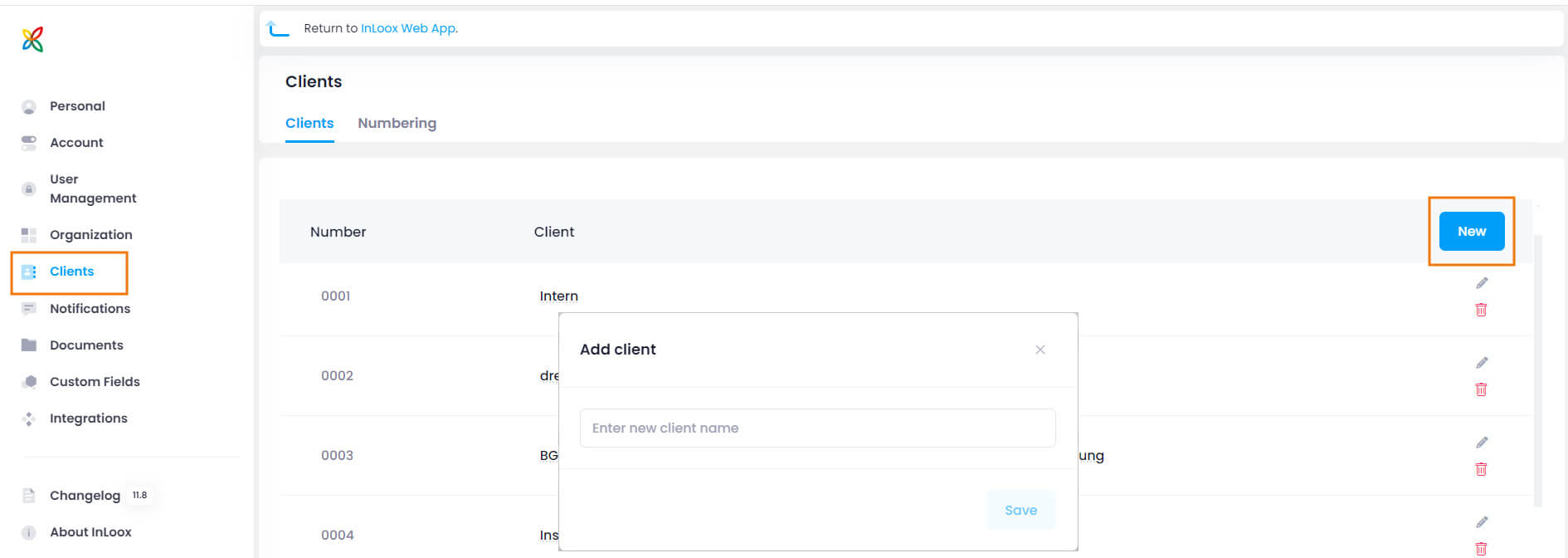
As the administrator of your organization's InLoox account, you can create new clients:
- Open InLoox Web App and click on your profile picture.
- Click on Account Settings and then on Clients in the menu bar.
- Click on New — a window opens where you type in the name of the new client and click Save.
The new client is added to the list.
Edit an existing client
If you need to change the name of an existing client, simply click on the name and type in the changes.
To change the client number, click on the pen icon to edit the number.
Define the client numbering
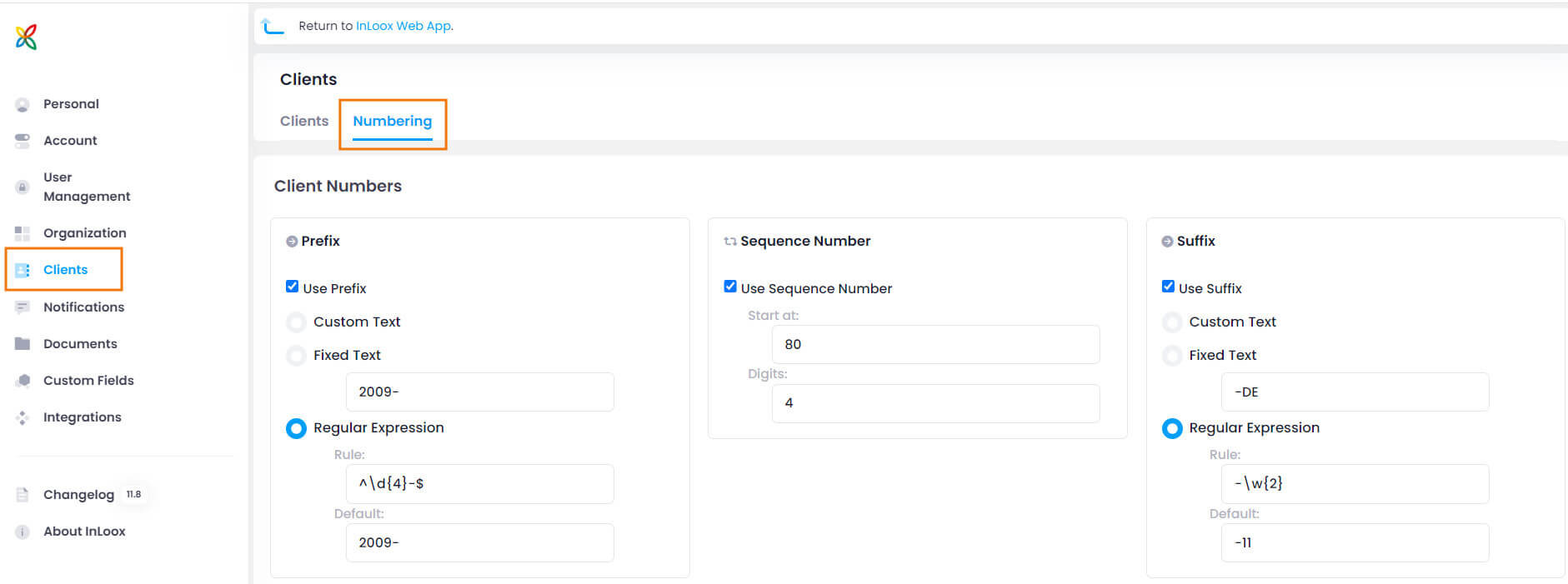
You can define the principle used to generate client numbers.
In the InLoox Account Settings, click on Clients and then on the Numbering tab.
A client number can consist of the following parts:
- Prefix
- Sequence number
- Suffix
We recommend using regular expressions to define the prefix and suffix consistently and to use sequential numbers.
You can also use a fixed text to define the prefix or suffix. However, avoid using the year here, as you would need to adjust this field manually when the year changes.
If you select custom text for the prefix and suffix, all InLoox users with the "Edit project" and "Edit manage" permissions can enter the prefix manually. This may result in inconsistent client numbering.
The client number can consist of only the sequence number. In that case, simply uncheck the Prefix and Suffix boxes.
If you do not want to work with client numbers at all, uncheck all three boxes.