Define Working Hours, Calendars, and Days Off
To access the InLoox settings, you need administrator rights for your InLoox account.
General information
The settings for working hours/calendars, days off, and individual availabilities are required for calculating workload and capacity within your InLoox account.
The working hours you define in the InLoox account apply globally to all persons who are available as resources.
- In InLoox Web App, click on your profile picture in the upper-right corner.
- Click on Account Settings.
- Click on Organization.
- Under the Working hours tab, enter the number of hours in the One working day has (hours) field.
1. Set calendar
InLoox provides three default calendars:

- 24/7 — Working days are Monday to Sunday, from 0:00 to 23:59 each day. This calendar cannot be deleted, but it can be edited and renamed.
- Standard — Working days are Monday through Friday, from 9:00 AM to 5:00 PM each day. This calendar cannot be deleted, but it can be edited and renamed.
- Weekend — Working days are Saturday and Sunday, from 0:00 to 23:59 each day. You can edit and delete this calendar.
To create another calendar:
-
Under the Working hours tab, click New under Calendar.
-
Assign a calendar name (e.g., "4-day week Berlin" for your Berlin team) and confirm by clicking Save.
-
Adjust the daily working times in the calendar. You have two options:
- Click on the top or bottom edge of a blue bar and drag the working time to the desired time window (half-hour increments only).
- Click on a blue bar to open the Edit Working Time window, where you can enter the working time down to the minute.
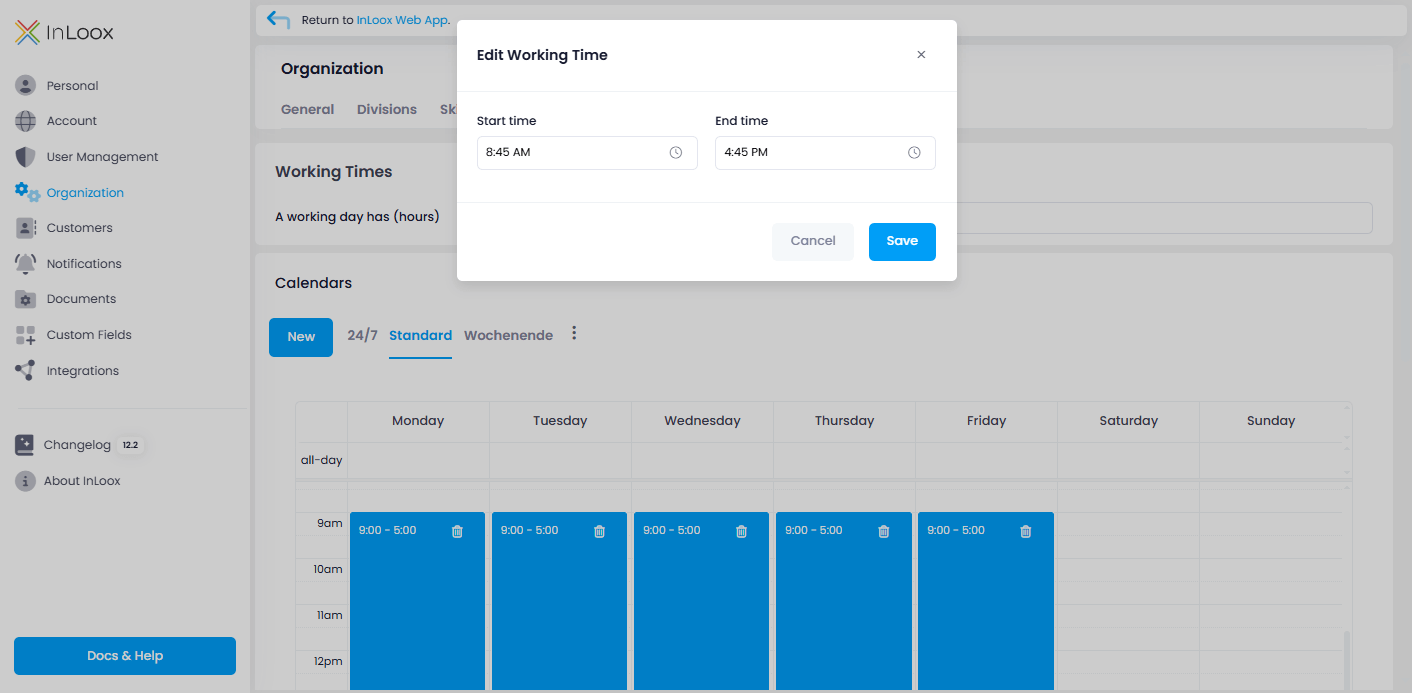
You can delete the working time for an entire day using the trash can icon.
-
Set whether the calendar should be visible in Planning and in People by activating the respective slider.
If the calendar should be assigned to persons so that the resource overview can calculate their capacities, the People slider must be activated.
2. Days off: Create holidays per calendar
- In InLoox Web App, click on your profile picture in the upper-right corner.
- Click on Account Settings and go to Organization.
- Click on Days Off.
- First, select a calendar or a person. Start typing the name to find it more quickly.
- Click Add Day Off to create a new day off, such as a holiday or company closed day.
- Fill in all data fields.
- Check Use for all calendars if you want this holiday to apply to all calendars.
If a calendar with days off is activated for planning, the configured days off are used for the calculation of planning elements in the Gantt chart.
Import days off from Excel or iCalendar file
You can import days off from an Excel file or an iCalendar (.ics) file.
Make sure your Excel/iCalendar file meets the following requirements:
- Select the correct calendar before importing.
- The sheet must be formatted as a table with headers.
- Follow the date/time format defined for your InLoox account (e.g., US format: month/day/year, 00:00 — or European format: day.month.year, 00:00).
- Use 1 in the "Use for all calendars" column for holidays that apply to all calendars. Use 0 for individual days off.
Example Excel sheet:
| Name | Start | End | Use for all calendars |
|---|---|---|---|
| Christmas 2025 | 12/25/2025, 00:00 | 12/25/2025, 23:59 | 1 |
| New Year's Day 2026 | 01/01/2026, 00:00 | 01/01/2026, 23:59 | 1 |
| Labor Day Germany 2026 | 05/01/2026, 00:00 | 05/01/2026, 23:59 | 0 |
| Paternity leave Christian Smith 2026 | 08/01/2026, 00:00 | 10/01/2026, 23:59 | 0 |
- Once you've met the above requirements, click Import/Export.
- Select the Excel file.
- InLoox opens the Map Excel Columns window. Verify the mapping and click Import.
- InLoox adds the days off. You can modify the data if necessary.
The same procedure applies to .ics files.
3. Availability: Days off for individual persons
In contrast to Days Off, availabilities do not influence the Gantt chart calculation. They are only used to calculate the workload of individual persons.
- In the InLoox Account Settings, click on Organization and then on the Availability tab.
- Click on Add Day Off.
- Name the day off, select the person it applies to, and choose the date and time.
- Confirm the entry by clicking Save.
Import a list of days off from Excel
Make sure your Excel file meets the following requirements:
- The sheet must be formatted as a table with headers.
- The person's name in the Contact column must match their Display Name in InLoox.
- Follow the date/time format defined for your InLoox account.
Example Excel sheet:
| Contact | Name | Start | End |
|---|---|---|---|
| Samuel Smith | Unpaid leave of absence 2026 | 01/01/2026, 00:00 | 03/31/2026, 23:59 |
| Chris P. Bacon | Summer vacation 2026 | 07/01/2026, 00:00 | 07/21/2026, 23:59 |
| Anne Lever | Summer vacation 2026 | 05/01/2026, 00:00 | 05/14/2026, 23:59 |
| JD Dance | Paternity leave 2026 | 08/01/2026, 00:00 | 10/01/2026, 23:59 |
- Once you've met the above requirements, click Import/Export.
- Click Import absences from Excel and select the Excel file.
- InLoox opens the Map Excel Columns window. Verify the mapping and click Import.
- InLoox adds the days off. You can modify the data if necessary.
Delete days off in Availability
Select the day off in the list and click on the trash can icon at the top right.
InLoox will ask you to confirm the deletion. Click Delete to proceed.
To delete the entire list of days off, click Delete All in the top-right corner. Confirm by clicking Delete.