Line Item and Plan Templates for Financials
Since InLoox 11.15 (November 2024), you can create line item templates for project financial plans. Since InLoox 12, you can also create templates for entire financial plans (OpEx, CapEx, or Revenues).
note
You need admin permissions to access the InLoox account settings and create line item templates.
How to create new cost/benefit plan templates
- Click on your InLoox profile picture and click on Account Settings.
- Under Organization, click on the Financials tab.
- In the Cost/Benefit Plans Templates section, click New and name your plan template. Click Save.
Edit the new plan template in the list:
- Select the type of plan for this template. Options include: Actual Capital Expenditure, Planned Benefit, Actual Benefit, Planned Capital Expenditures, Planned Operational Expenditures, or Actual Operational Expenditures.
- To make this plan available for your entire InLoox account, check the Public box.
Then add line items by clicking the edit symbol. A new window opens:
- Click New, enter the name of the line item, and click Save.
- Select the Group for the line item.
- Add a Description, Quantity, and Unit.
- If the group does not automatically assign a Purchase Price and Sales Price, fill in those fields manually.
- Add more line items via the New button.
Click Close to save the line items for this plan template.
How to create a new line item template
- Click on your InLoox profile picture and click on Account Settings.
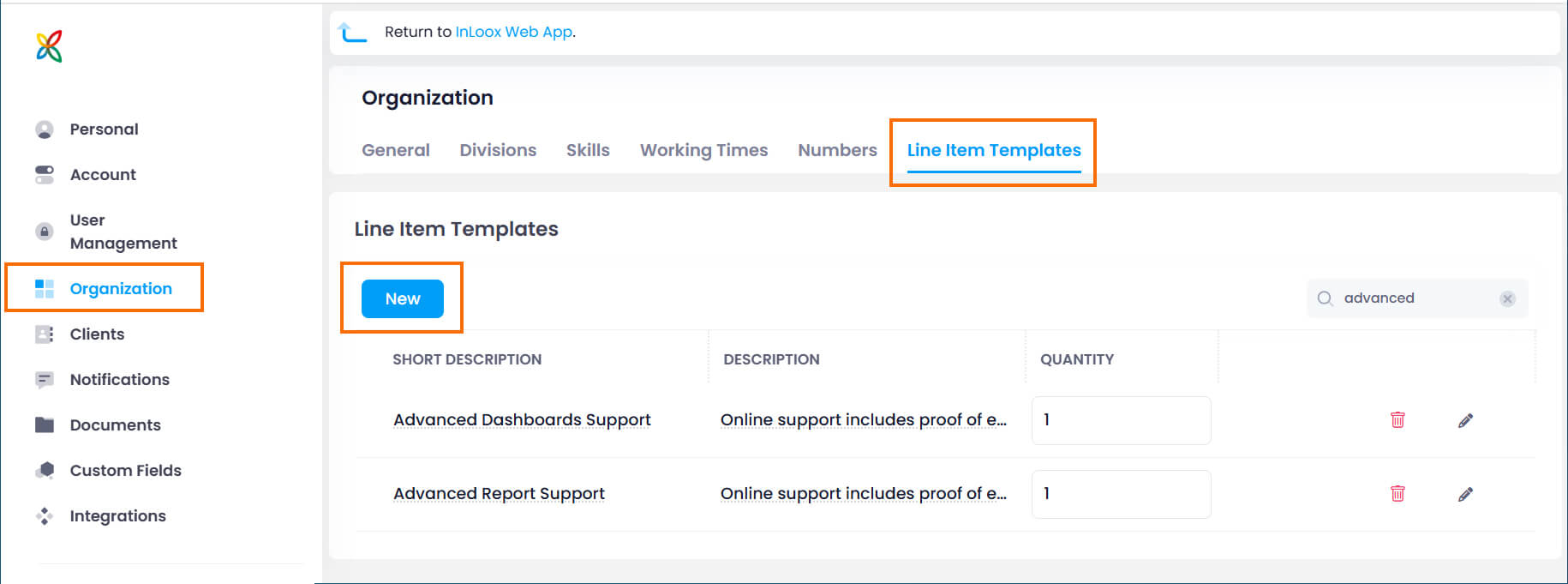
- Under Organization, click on the Line Item Templates tab.
- Click New. In the Add Line Item window, enter the name and click Save.
- Find the newly created template in the list. Click the pen icon to edit it further.
- Click Unit to define how this line item is calculated (e.g., by hour or by day). Click Save.
- Click into the Purchase Price and Sales Price fields to add pricing per unit.
- Under Groups, select the group this line item belongs to (e.g., Support, Consulting, or Implementation).
- Close the window and set the Quantity of the line item.
The line item template can now be used in project financial plans.
How to edit a line item template
- Click on your InLoox profile picture and click on Account Settings.
- Under Organization, click on the Line Item Templates tab.
- Click the pen icon of the template you want to edit.
- Make your changes and click Close.
How to delete a line item template
- Click on your InLoox profile picture and click on Account Settings.
- Under Organization, click on the Line Item Templates tab.
- Click the trash icon of the template you want to delete.
- Confirm the deletion by clicking Delete.
info
Deleting a line item template does not affect financial plans in which the deleted item was already used.