Comments
With the InLoox comment function, you can easily communicate with your project team, individual team members, or groups.
Comments are available in:
- Projects on the Manage page
- Tasks
- Documents
- Risks (not included in the InLoox Professional Edition)
- Time entries
Post a comment
To add project comments and task comments, you need the permissions Add project comments and Add task comments, assigned either as global user permissions, department permissions, or via role permissions. For more details, see Permissions.
For example, to post a comment on a project:
- Open the project.
- Go to the Manage page.
- On the right-hand side, you will see the activity feed. Click the Comments button.
- If you are the first person to comment on the project, this area will be empty. Otherwise, you will see comments that other team members have already posted.
- Click the Enter a message… field at the bottom and start typing.
- Format your message if needed.
- When finished, click Send.
Address a team member, a group, or a role using @
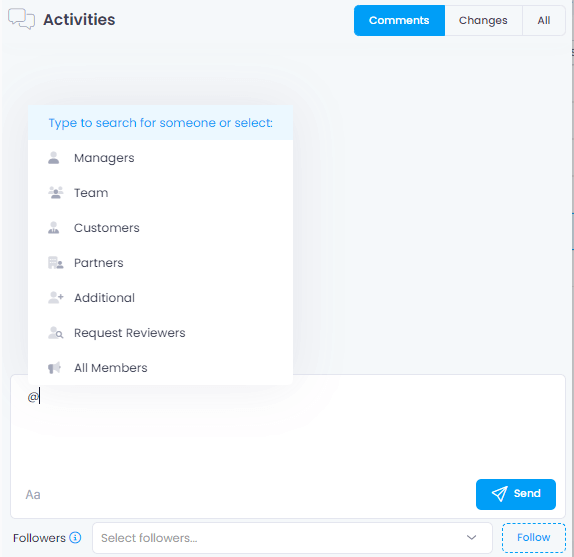
You can use the @ function to address specific people or groups:
- To address the entire project team (e.g., with a welcome message), type
@and select All Members from the menu. - To address people with a specific role in the project (e.g., Project Managers), type
@and select the group Managers from the menu. - To address a single person, type
@and start entering the person's name. InLoox will display all matching contacts.
Comment notifications
When you send a message using the @ function, InLoox sends a notification email to the addressed persons. You will also receive a notification email.
For more information, see Notifications.
Delete comments
You can restrict the permission to delete the following comments:
- Project comments
- Task comments
Go to InLoox Account Settings → User Management and remove the following global and department permissions from a user:
- Delete project comments
- Delete own project comments
- Delete task comments
- Delete own task comments
Additionally, review the role permissions. For example, if team members should not be allowed to delete comments, configure this in the settings of the Team Member role. For more details, see Permissions.
You must be an InLoox administrator to access InLoox Account Settings and configure permissions.
Search comments in a project
You can search comments within a project. The following comments are searchable:
- Project comments on the Manage page
- Comments on tasks
- Comments on documents
- Comments on risks
- Comments on time entries
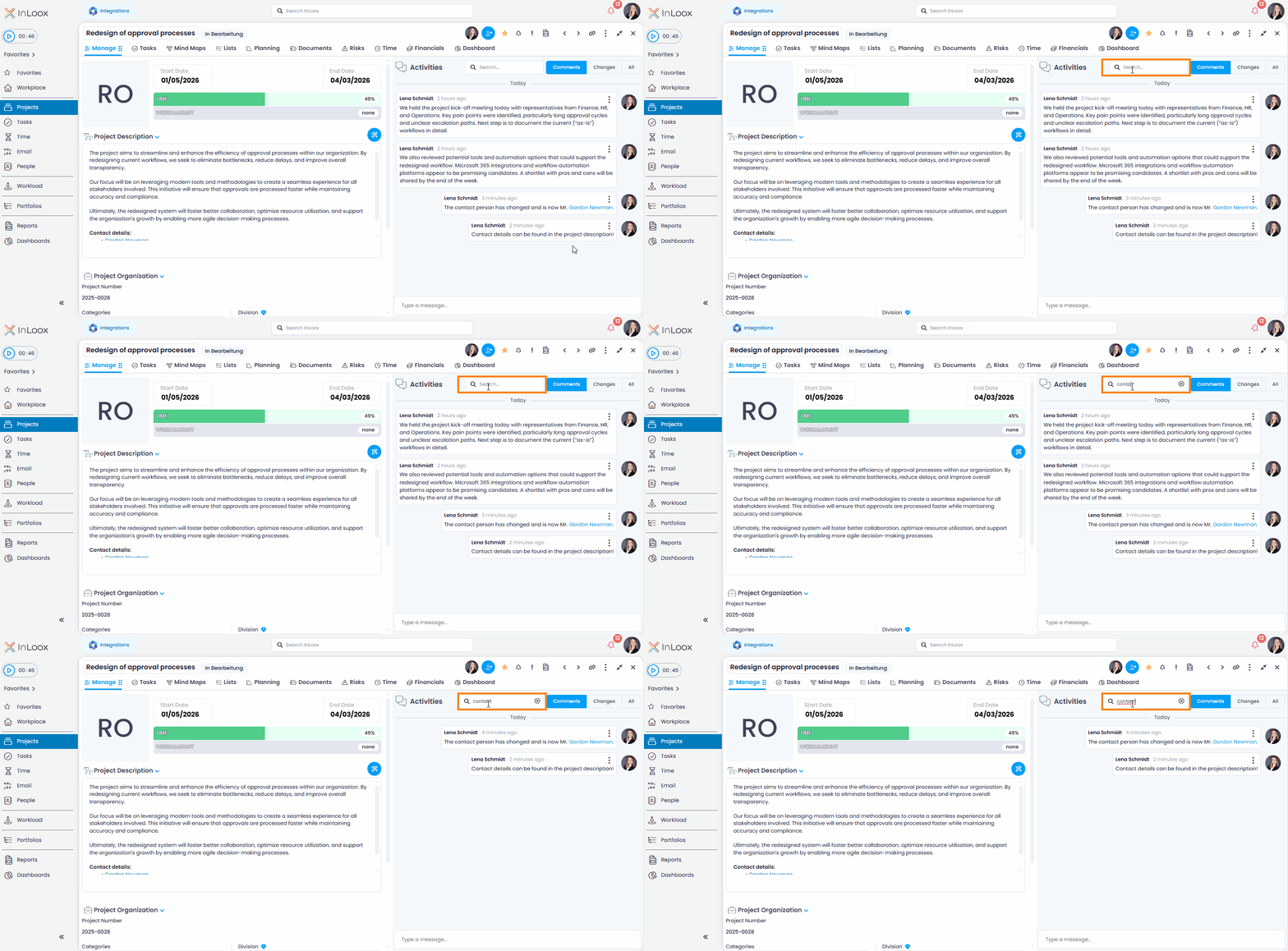
Enter a keyword in the search field in the comment column. InLoox displays all matching results.