Change the Email Address of a Person
If a user's email address changes, several steps are required to update it in InLoox. With this method, all assignments within roles are fully retained.
You can always edit your own contact entry. If you want to edit the entry of another person, you must have the global permission Edit People. If you do not have this permission, please contact your InLoox administrator to obtain it.
1. Disconnect Microsoft 365 Account (If Applicable)
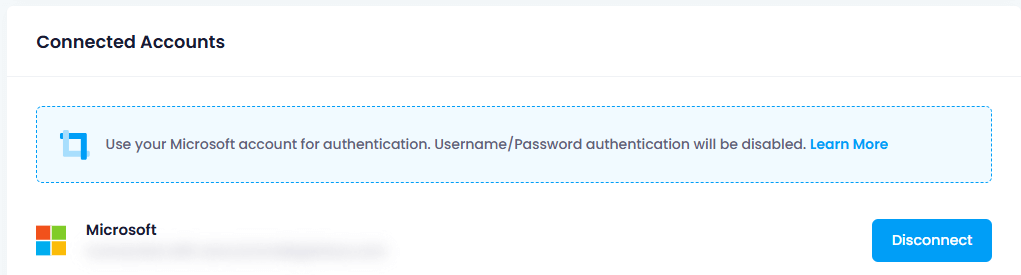
If the affected InLoox user has connected their Microsoft 365 account, the user must first disconnect it manually:
- Click on your profile picture and select My Profile.
- Go to the Settings tab.
- Scroll down to the Linked Accounts section.
- Click Disconnect next to the Microsoft account.
2. Administrator Adjustments
Once the connection to Microsoft 365 has been removed, the administrator must complete the following steps:
Remove User Access
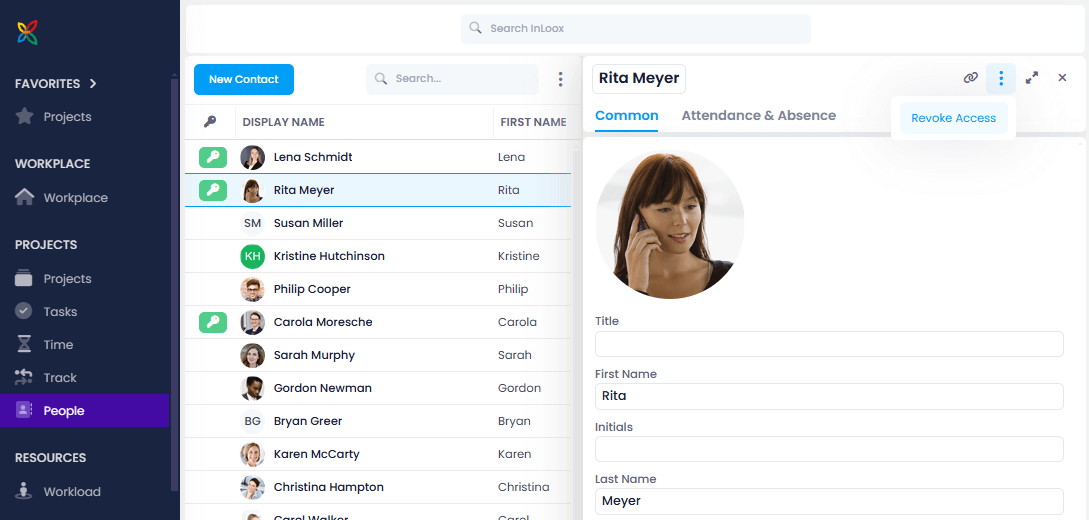
- In InLoox Web App, navigate to People in the left main menu.
- Select the affected user.
- Click the three dots in the top-right corner and select Revoke Access.
Update the Email Address
- Update the user's email address.
- Click on an empty area or another row to save the changes.
Reinvite the User
- Click the three dots in the top-right corner again.
- Select Resend Invitation.
- The user will receive an email with a login link.
We recommend performing the login and re-establishing the Microsoft 365 connection in an incognito window or clearing the browser cache beforehand. Otherwise, the old Microsoft 365 account may still connect to InLoox due to cached data.
If SharePoint Online is linked, the consents for SharePoint access should be reconfigured after a successful connection.