Group, Filter, and Sort List Views
You have several options for customizing your list views and displaying exactly the information you need.
Group Data
To group data in a list view, follow these steps:
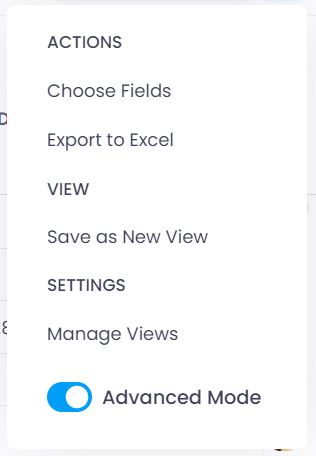
- First, activate the Advanced Mode. Click the three vertical dots in the upper-right corner and enable the "Advanced mode" toggle.
-
Now display the columns that are relevant for your grouping (e.g., project name, task name, project manager, start, end, etc.).
Click the three vertical dots in the upper-right corner again and select Choose columns. Drag the desired column from the column chooser to the desired position in the list. Then close the column selection menu.
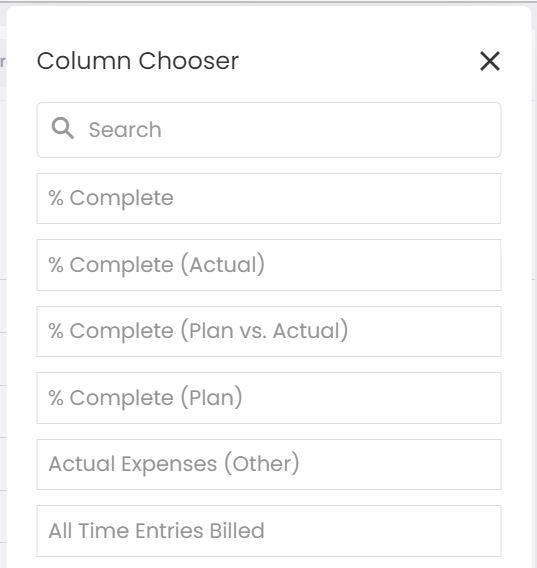
You can find a complete overview of all available columns in the Columns in List Views article.
- Group the data: Drag the column you want to group by into the area above the table headers.
You can group by multiple columns. Simply drag additional columns into the area above the column names.
Examples:
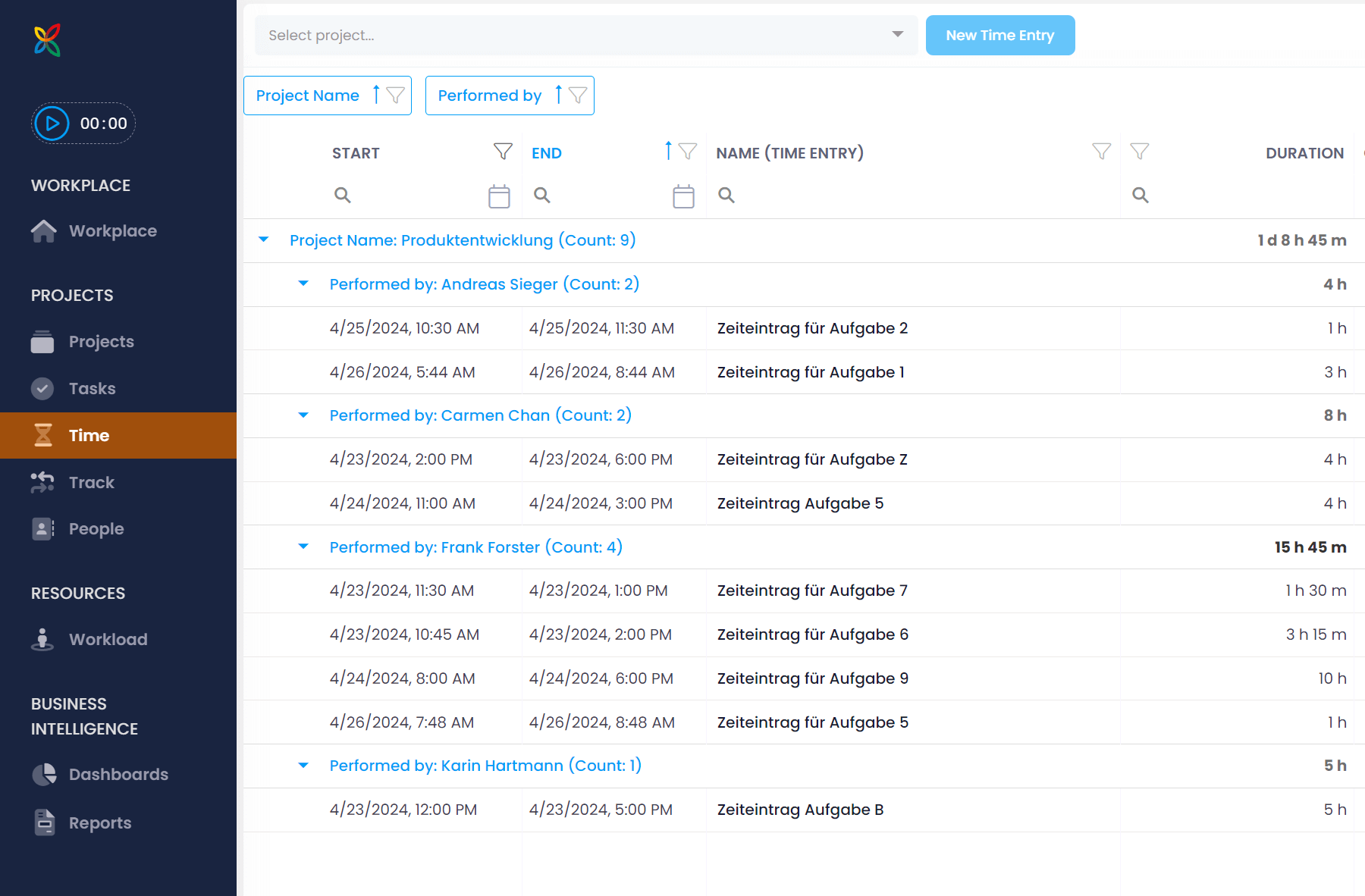
- You are in the list of time tracking entries and want to break them down by project. Drag the Project Name column to the top and group by it.
- Additionally, you want to break the entries down further by person — drag the Performed by column to the top and group by it as well.
The result could look like this:
Filter Data
You can use filters to display only the data that is relevant to you. This also works in simple mode.
You have several options:
Basic Filtering
- Click the filter icon directly to the right of the column name you want to filter.
- Select the filter criterion.
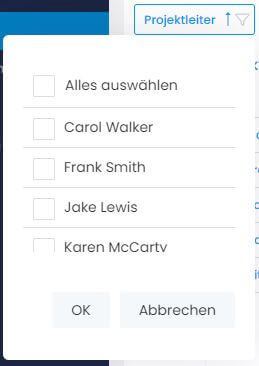
Example: Select a person in the filter for the "Project manager" column to see only entries where that person is the project manager.
Use the search field to minimize scrolling and jump directly to the term you are looking for. Multiple selections are possible.
Advanced Filtering
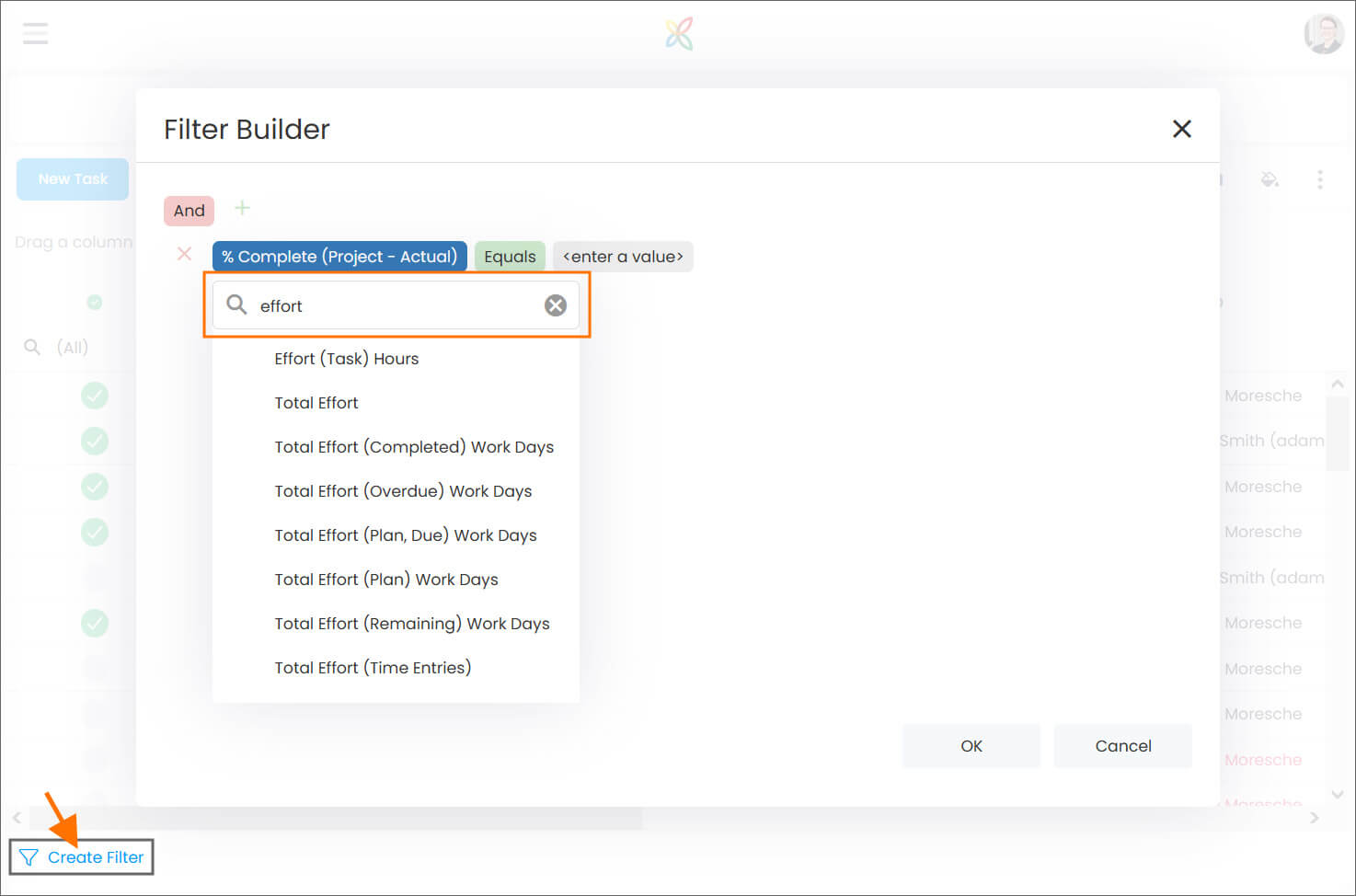
- At the bottom of the view, you will also see a filter icon. Click Create Filter.
- This opens the Filter Builder, which lets you create more complex filters.
Search for a Column in the Filter Builder
Start typing the name of the column you are looking for into the search field. InLoox displays the columns matching your search. Select the correct column and proceed with building the filter.
Example — Using a dynamic date filter:
To display only the time entries for the current month using a dynamic date filter:
- Navigate to the list of time tracking entries and open the Filter Builder (see above).
- Next to the AND operator, click the + sign on the right and then select Add condition.
- Click the field highlighted in blue and select the Start column.
- Click the field highlighted in green and select the operator Is later than the start of.
- Click the field with a gray background and select one of the available date filters — in this case, This month.
- Confirm with OK at the bottom right. The filter is applied immediately. You can verify this at the bottom of the view.

Remove a filter:
To remove a filter, click Clear at the bottom-right of the view.
Sort Data
To sort alphabetically in ascending or descending order within a list view or grouping, click the arrow in the desired column header.
Example: To sort all project managers alphabetically in ascending order, click the arrow so that it points upward.