Conditional Formats
With conditional formatting, you can automatically change the appearance of cells, text, and other elements based on specific criteria or conditions. You can create rules based on conditions for important project information or key figures, so that the respective field or entire row is highlighted (e.g., in color) when the condition is met.
Application: Conditional formatting is particularly useful for structuring the project list — for example, to highlight data, visualize trends, or improve readability. It can also serve as an early warning system for critical projects in project controlling.
Create a Rule — Example with a Reference Value
We start with a simple formatting rule that compares a field's value against a defined reference value. In this example, projects whose actual expenditure exceeds a specified amount will be highlighted in red.
-
Open InLoox Web App and navigate to the project list via the Projects menu item.
-
Click the button in the upper-right corner and then select + Add Rule to create a formatting rule.

-
Define the condition:
- Keep the pre-selected And operator (the four available operators are And, Or, Not And, Not Or).

- Click the field highlighted in blue and select a category. In our case, we select Total Expenses (Actual).
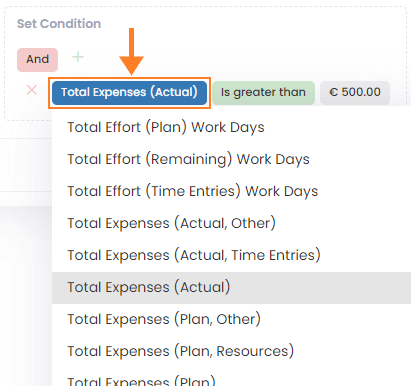
- Click the field highlighted in green and select the operator Is greater than.
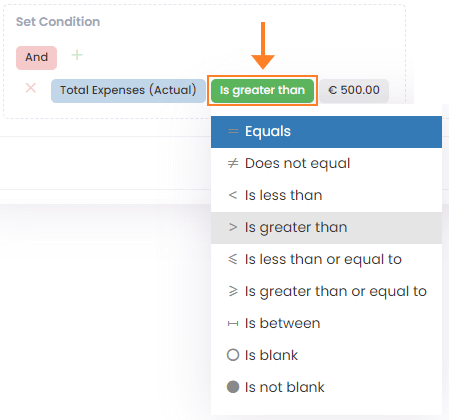
- Enter a specific reference value under Enter a value — for this example, we use
500.

- You can add further conditions to refine the rule, but one condition is sufficient for this example.
-
Select the style — choose which color change should occur when the condition is met. We select the red marker named Danger.

- Under Assign To, choose whether the formatting applies to the full row or a single field. In this example, we select the full row.

- Your formatting rule is now complete.

-
The rule is active immediately. Verify that the conditional formatting works as expected. You can edit or remove the rule at any time.
-
Result: In the project list, Beispielprojekt 2 is now highlighted in red because the value in the Total Expenses (Actual) cell exceeds €500.

Create a Rule — Example with Two Related Fields
Instead of using a fixed reference value, you can compare two fields against each other. This lets you mark tasks or projects where an actual value has exceeded a target.
When creating the rule, select a field and then choose one of these operators:
- Equals field value of
- Does not equal field value of
- Is greater than field value of
- Is less than field value of
- Is greater than or equal to field value of
- Is less than or equal to field value of
Then select a second field to compare against.
Example 1: Booked Hours (Project) Is greater than field value of Workload (All Tasks)
This highlights projects where actual time tracking exceeds the planned workload.

Example 2: Total Expenses (Actual) Is greater than field value of Total Expenses (Plan)
This warns you when a project's actual costs exceed its planned costs.

Create a Rule — Example with Dynamic Date Operators
For rules relating to schedules and deadlines, you can use a dynamic date operator instead of a specific date. This lets you define rules that automatically adapt to the current date, avoiding manual adjustments.
Select one of these operators:
- Equals the start of
- Does not equal the start of
- Is earlier than the start of
- Is later than the start of
- Is earlier than or equal to the start of
- Is later than or equal to the start of
Then select a dynamic time range:
- Today / Tomorrow / Yesterday
- This / Next / Last week
- This / Next / Last month
- This / Next / Last quarter
- This / Next / Last year
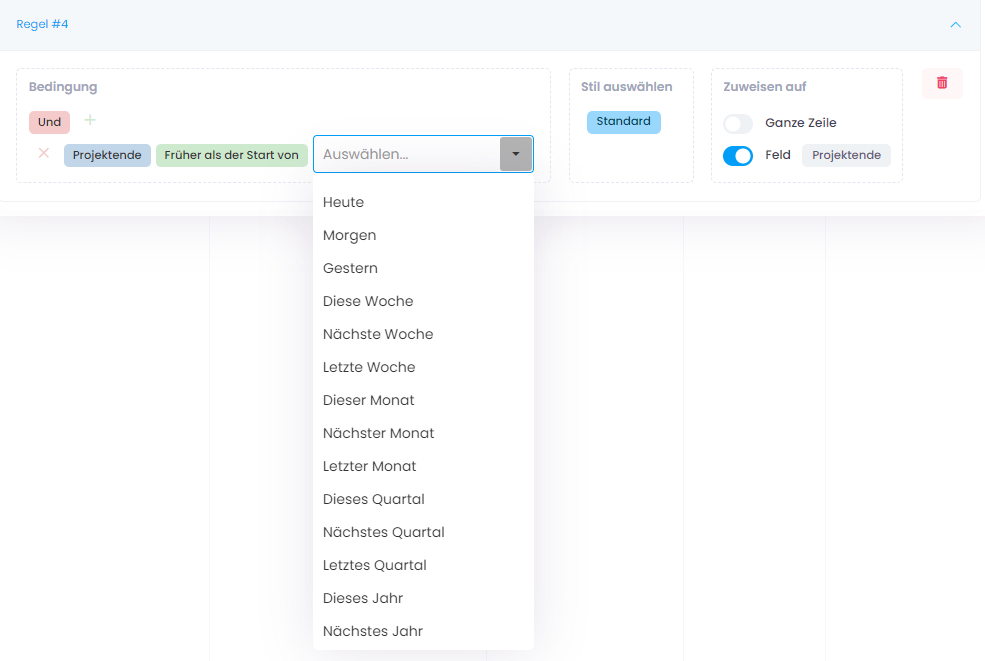
Example: End (Task) is earlier than the start of Next quarter
This marks all tasks with a deadline before the start of the next quarter.
This rule applies to the task list.

Changing the Order of Rules
If the order of rules does not suit your use case, you can rearrange them using the up/down arrows.
How Formatting Rules Are Applied
- Row-level formatting: When multiple row-level conditional formats are defined, only the style from the last matching condition is applied. This ensures each row has only one conditional style, preventing conflicts.
- Cell-level formatting: Cell-level formats are applied independently for each cell. Each cell's format is determined by the last matching rule for its specific field name, allowing different styles for different cells within the same row.
If the rule order doesn't match your needs, use the up/down arrows to rearrange them.
FAQs
Why is my conditional formatting not being applied?
Check for incorrectly set conditions or conflicts between multiple rules. Fields often have similar names (e.g., Total Expenses (Actual) vs. Total Expenses (Actual, Other)) but reference different data sources. Consult the column overview to verify which columns exist and what data they contain.
Is there a limit to the number of rules?
No. However, many rules can lead to conflicts. Only the last matching condition's style is applied. Use the up/down arrows to adjust rule order.
Are conditional formats preserved when saving views?
Yes, conditional formatting rules are included when you save a view.
Can I export conditional formats or share them with other users?
Yes — by uploading/downloading the saved view or by making the view visible to everyone.