Risk
The Risk feature is only available in the InLoox Enterprise Plus Edition and InLoox Self-Hosted. It is part of the Project Management Office / Project Portfolio Management feature set.
How to Create Project Risks
Before creating risks, you should first create risk-mitigating project tasks that can be assigned to risks.
- Open a project and click on the Risk tab.
- Click the New Risk button. The side panel with the risk details opens.
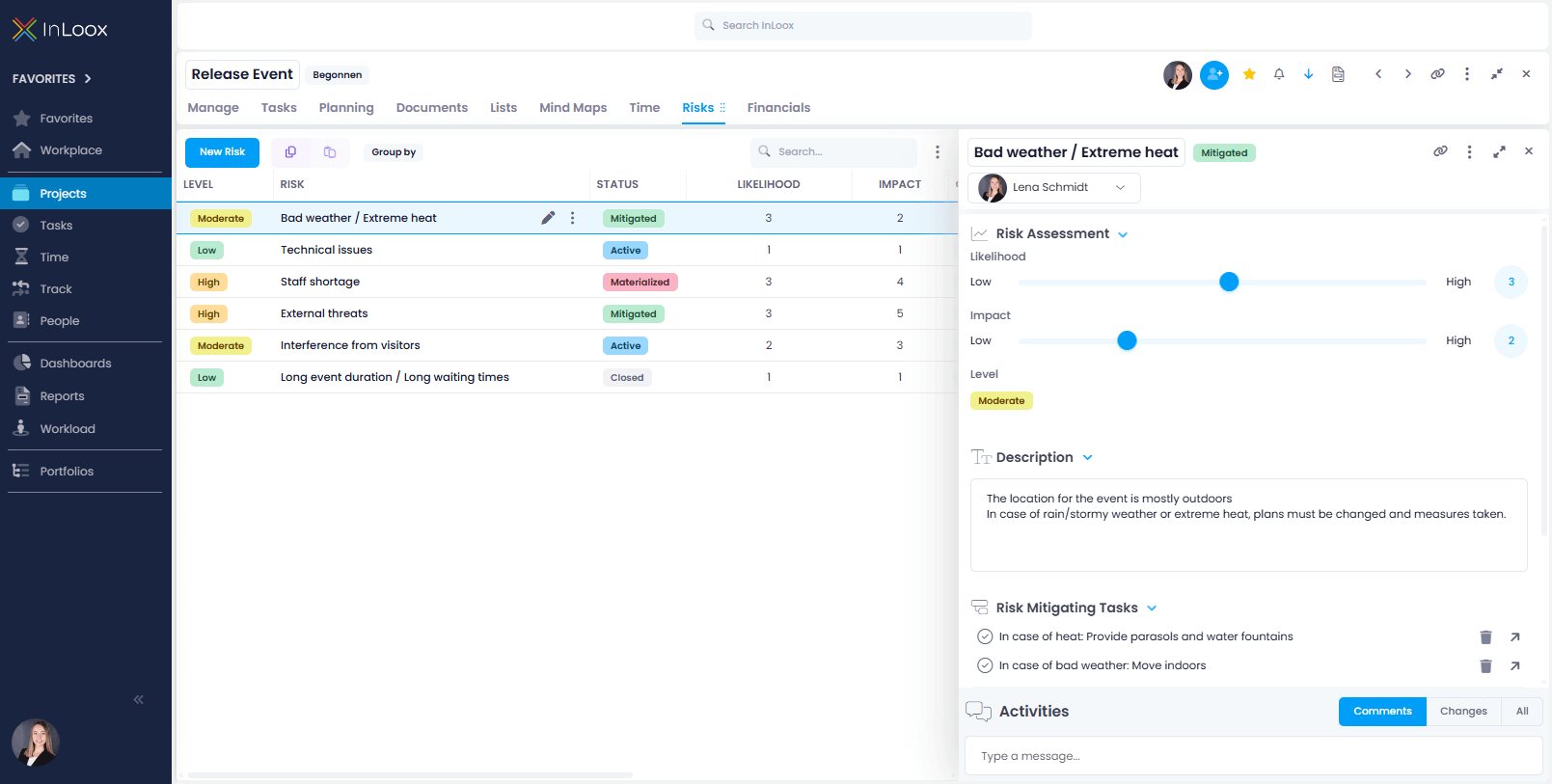
- Name the risk and fill in all the necessary information in the respective fields.
Risk Assessment
Depending on the impact and likelihood, the risk level and the risk score are calculated automatically. The likelihood of a risk materializing mitigates the impact. That is, the lower the likelihood, the lower the overall risk level and risk score.
- Likelihood – Scale of 1–5 (Low – High)
- Impact – Scale of 1–5 (Low – High)
- Level – Low, Moderate, High, Extreme
If a risk has a likelihood of 2 and an impact of 4, InLoox calculates an overall score of 8 and assigns risk level Moderate.
Risk Score = Likelihood × Impact → Level
- Add a description for the risk.
- Add a mitigating task. This task may be part of the current project, or you can assign a task from a different project. For a global search, type in the name or part of the name of the task and activate the Global Search function.
- You can also attach documents and link other InLoox items to the risk.
- If you have already created custom fields for risks, they will be visible as well.
- Under Activities, you can add comments, notify other users via @Name, and view all changes made to the risk. Tracked changes include:
- Person who made changes
- Risk name
- Likelihood, impact, and status
- Custom field changes
Formatting the List of Risks
Adding More Columns
You can add more columns to the standard list view. Click the three-dot menu on the right and select Choose Columns. The following columns are available:
- Created on
- Description
- Impact
- Level
- Likelihood
- Owner
- Risk (Name)
- Score
- Status
- Updated at
Grouping and Filtering
You can group the list by dragging a column header into the area labeled "Drag a column header here to group by that column." Alternatively, click the Group by button for standard groupings.
You can also filter the list by clicking the filter icon next to a column name, or create advanced filters using the Filter Generator by clicking Create Filter at the bottom of the list.
For detailed information about available columns, see the help article on column overview.
Export Risk List to Excel
Once you have created the project risk list, you can export it as an Excel file:
- Click the three-dot menu on the right and select Export to Excel.
- The list with all visible columns will be exported as an
.xlsxfile to your device.
Tips for Practical Use of Risk
- To use the risk feature, you need editing permissions for Risk. An administrator must enable the Edit risks permission (which automatically enables View risks) either as:
- A global user permission
- A division user permission
- A role permission (e.g., for the Project Manager role)
Read the help article on InLoox permissions for further information.
- Risk data sets are available for InLoox Dashboards.
- The Risk column in the project list shows the risk value from the project assessment on the Manage page.
- The Risk column in the task list shows the name of the risk to which the task is linked as risk-minimizing.