Create and Edit a Time Tracking Entry
You have several options for creating a new time entry:
- Time entry from a project task
- Time entry in the project Time tab
- Time entry from the global time tracking view
- Time entry using the stopwatch
- Time entry from a calendar appointment:
- Using Outlook calendar integration
- Using the InLoox Add-in directly in Outlook
Time Entry from a Project Task
You can create a time entry directly from a task using the stopwatch, quick entry, or a calendar appointment.
- Click Projects in the left menu and open an existing project.
- Click the Tasks tab and select the task you want to track time for.
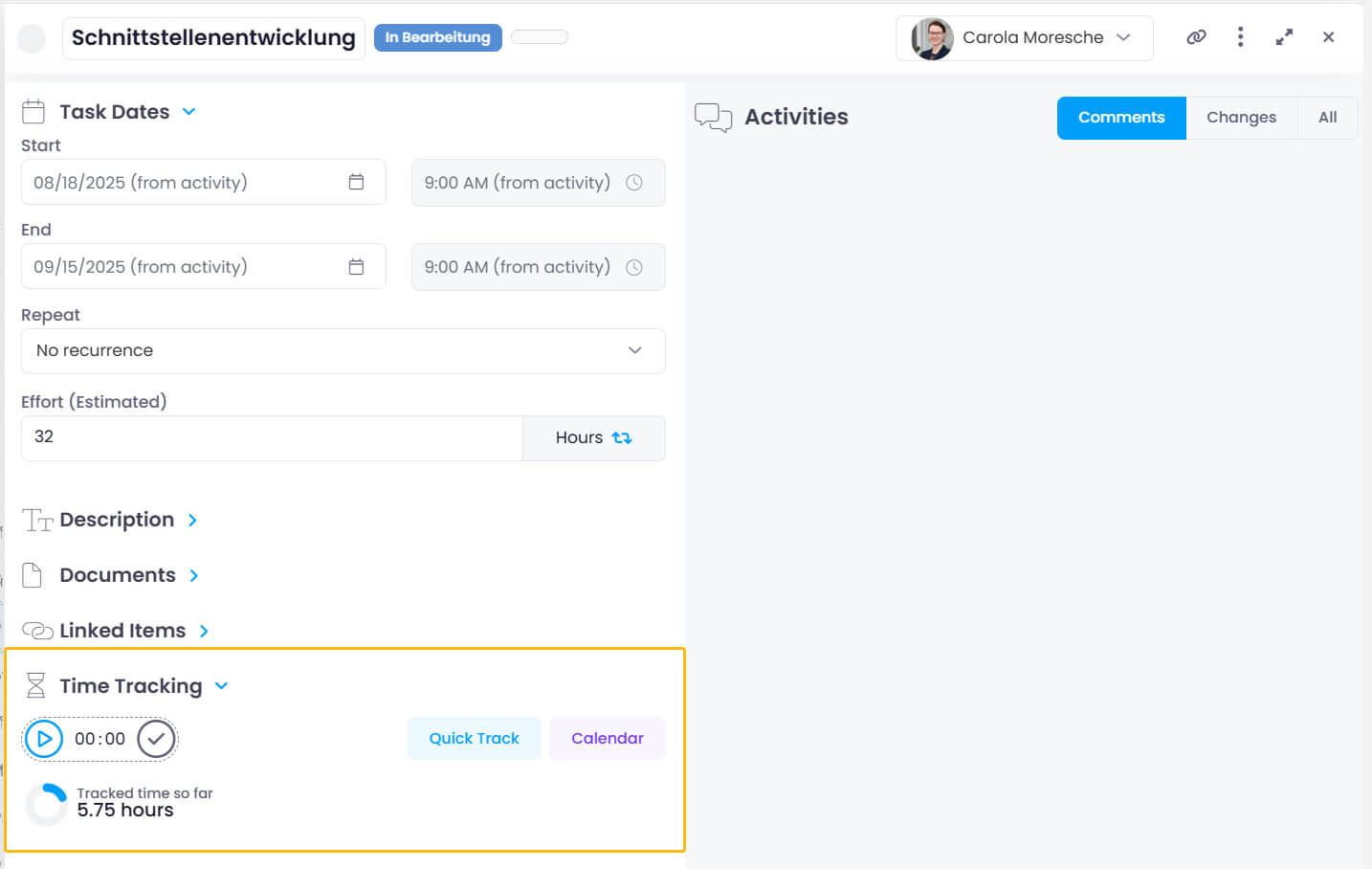
- In the open task, you'll see how much time has already been booked. To create a new entry:
- Click the start button to use the stopwatch. Click the checkmark to post the recorded time.
- Click Quick Track to log a predefined duration (e.g., 15 minutes or 2 hours).
- Click Calendar to record an appointment's duration as working time.
A time entry linked to the task is created and opened automatically. All task information is transferred. You can modify the title, description, duration, and other details.
Time Entry in the Project
- Click Projects in the left menu and open an existing project.
- Click the Time tab, then click the blue New Time Entry button.

- Add the relevant details for the time entry.
- You can also copy and paste an existing entry using the purple copy/paste icons (available since InLoox 11.14).
Link a Time Entry to a Project Task
When creating or editing a time entry, you can select a related task:
- Create or open a time entry and verify it's assigned to the correct project.
- Click the task picker. If no tasks appear, activate Show tasks from others.
- Tasks are grouped by Open and Done.
- Select a task — done!
Time Entry from the Global View
- Click Time in the left menu.
- At the top, select a project and click the blue New Time Entry button.

- Optionally link the time entry to a project task using the task picker.
Sort by start date (newest first) to quickly find your new entry. Click on Start date to toggle the sort order.
Fill the Time Entry with Details
Once created, click the time entry to edit it:
-
Name — Define a descriptive name for the activity.
-
Time entry dates (mode) — Choose between Start and duration, Duration and end, or Start and end. The effort (days, hours, minutes) represents the time spent working.
noteThe start date defaults to the creation date. By default, you can post effort retroactively for up to 30 days. The permission Allow backdating in time recording is required.
-
Description — Add a short description (e.g., a note for accounting).
-
Documents — Attach related documents or links.
-
Linked Items — Connect the time entry to items from current or other projects (documents, other time entries, mind map nodes, budgets, or planning elements). Links are bidirectional.
-
Belongs to — Assign the entry to a project, activity, or task. You can create a new task by typing the name directly.
-
Billing — Assign a cost group in the Group field (managed in InLoox settings). Check Billable if the entry can be billed.
-
Custom fields — Managed in InLoox settings under Custom fields.
-
Resource (Performed by) — By default, the creator is the resource. You can change this if someone else performed the activity.
-
Comments — Useful for queries from supervisors about the time entry.
All information is saved automatically. Simply close the editing window when you're done.