Checklists for Tasks
Since InLoox 12.3, you can create checklists for personal and project tasks. Use them for subtasks, completion steps, or as simple reminders for details you want to check off.
Important
To create checklists in tasks, you need the Edit tasks permission — either as a global user permission (not recommended), via division permissions, or through a project role. See the help article on InLoox Permissions.
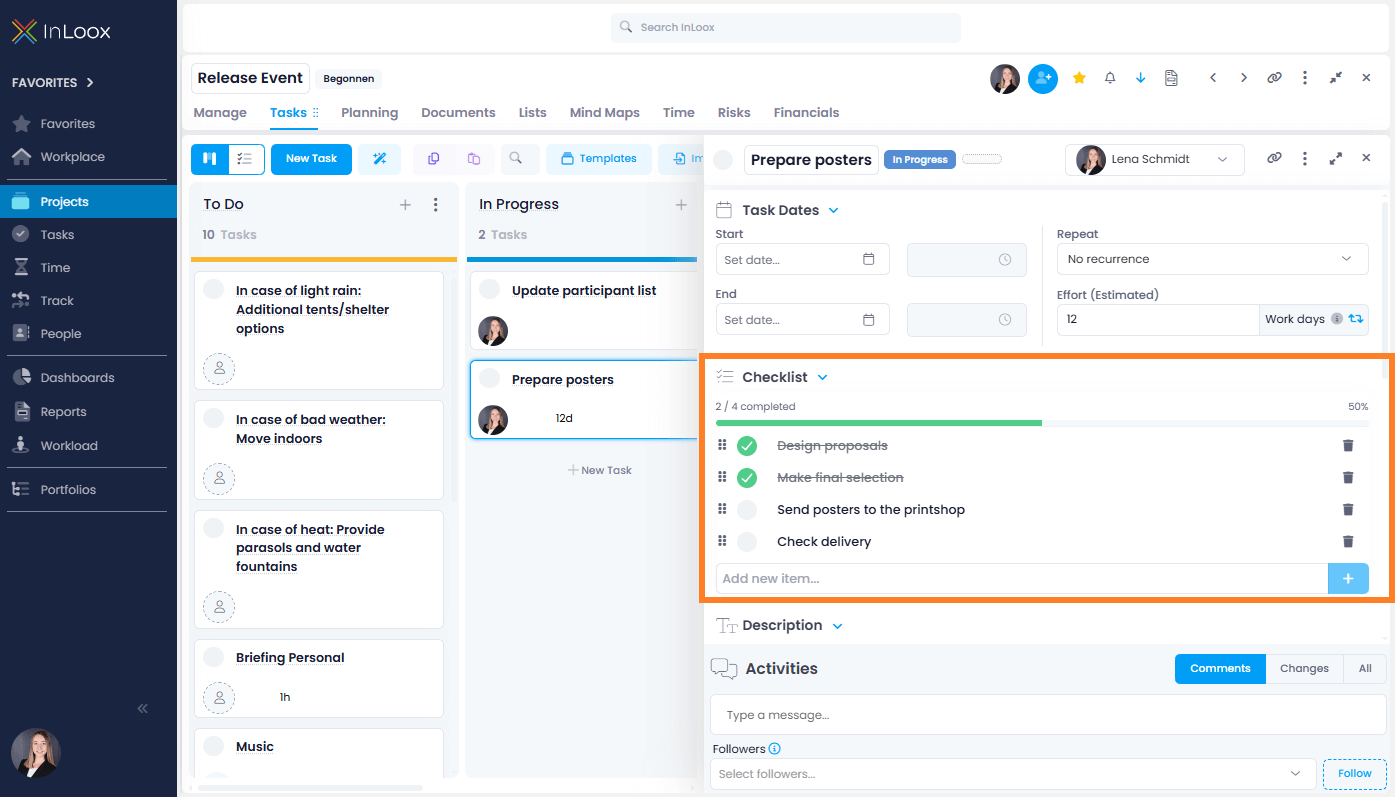
- Create a new task or open an existing one.
- Under Checklist, type the name of the checklist item and press Enter or click the + button.
- Rearrange items by dragging them up or down.
- Tick items off to track progress as a percentage.
- Delete items by clicking the bin icon (confirmation required).
Checklist Columns in Task Lists
The following checklist columns can be displayed in the project task list and multi-project task list:
- Checklist Items — Total number of checklist items
- Checklist Items Done — Number of completed items
- Checklist Items Open — Number of remaining items