Synchronize Tasks with Outlook Calendar
In InLoox, you can synchronize project tasks with your Outlook calendar. The synchronization is bidirectional, provided the corresponding permissions are enabled.
Prerequisites
- Connection with Microsoft 365 is enabled.
- Permission Changes to InLoox tasks update calendar entries is enabled.
- Optional: Permission Changes to calendar entries update the InLoox task is enabled for reverse sync.
The connection and permissions are configured in the InLoox Integration Center.
note
If you use InLoox Self-Hosted Edition, please read the support article on configuring InLoox Self-Hosted for automations with MS365/Exchange Online.
File and Synchronize a Project Task in the Calendar
With the File and synchronize task in calendar toggle, you can create an Outlook calendar entry from a project task and keep changes synchronized.
- Open a project task in InLoox, either in Workplace or in a project under Tasks.
- At the top of the task, activate the File and synchronize task in calendar toggle next to the calendar icon.
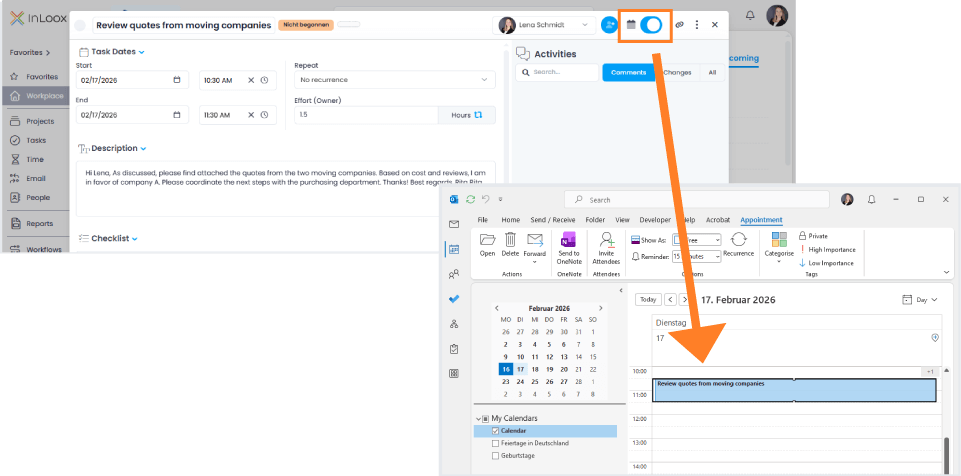
- From that point on, changes to start date, end date, and task name are automatically updated in the calendar. If reverse sync is enabled, calendar changes also apply to the InLoox task.
Please Note
- Changes to the task description are not synchronized.
- If the task is assigned to a Gantt chart activity, it may result in very long calendar entries. Check the task dates before enabling synchronization.