Documents in Financials
You can add documents — such as bills, invoices, or spreadsheets — to:
- A financial plan, or
- Individual line items.
If you do not want to upload a file, you can add a link to a document instead.
Add a Document to a Financial Plan
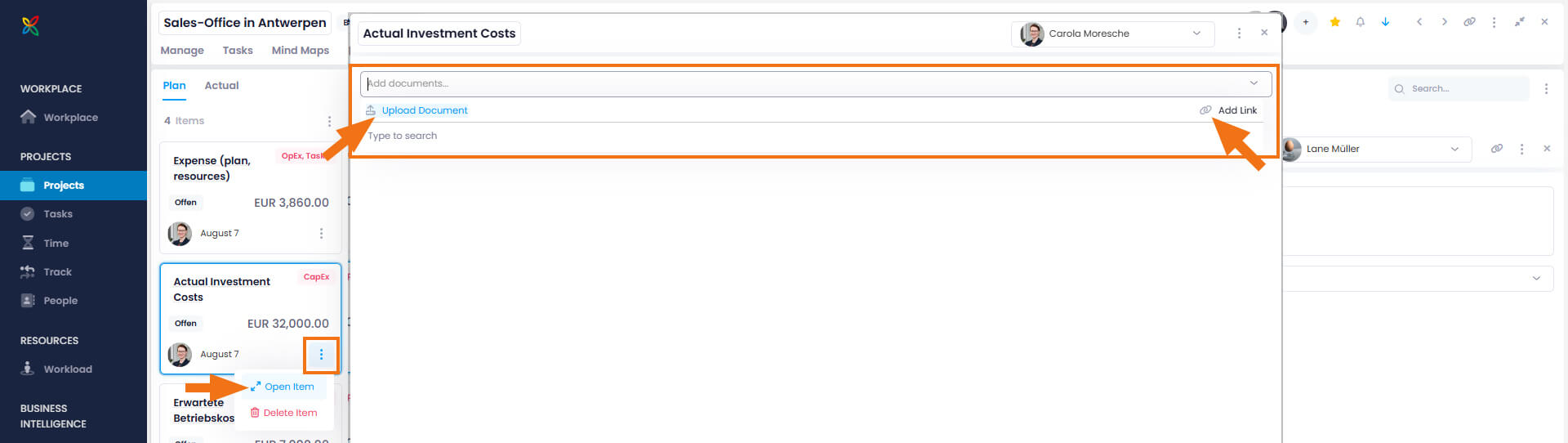
- Open a project and click on the Financials tab.
- Select a financial plan (or create a new one) and click the three-dot menu.
- Click Open Item.
- In the overlay window, click Add document.
- You can now either Add a document as a file from your file storage, select a file already uploaded to your project documents, or Add a link to a document.
Once the document is added, you can access and edit it as described in the help article on InLoox documents.
Add a Document to a Line Item
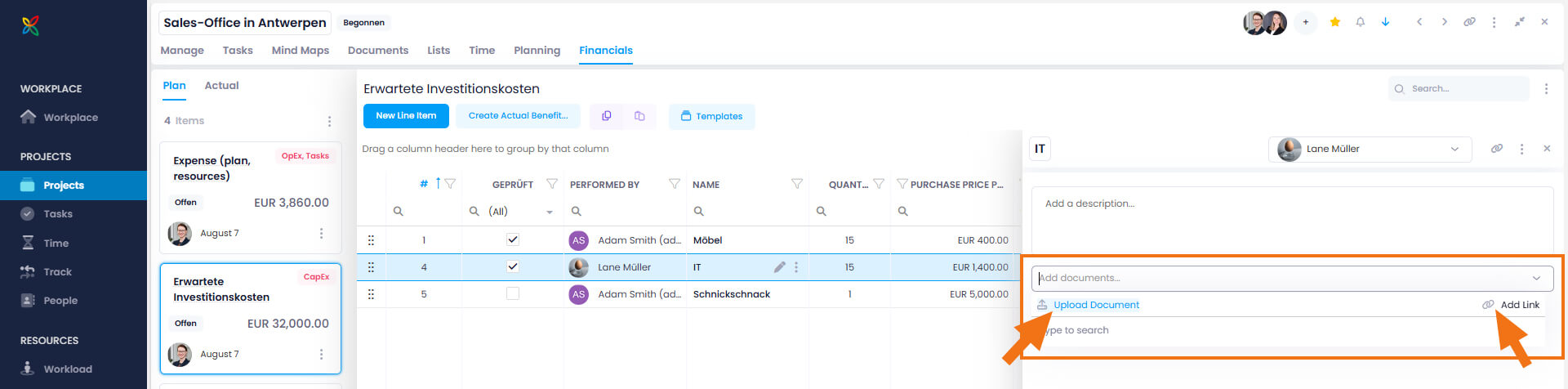
- Open a project and click on the Financials tab.
- Select a financial plan, then select a line item (or create a new one) and click the edit icon (pen icon) to open the side panel.
- In the side panel, click Add document and then either Add a document as a file, select one from the documents list, or Add a link to a document.
Once the document is added, you can access and edit it as described in the help article on InLoox documents.