Templates for Budgets and Budget Line Items
To use budget line item templates, you must first create financial plan templates or budget line item templates for your InLoox account in the account settings. You need admin permissions to access the InLoox account settings.
Using Templates in Project Financials
You can use both financial plan templates and line item templates to quickly create project financials.
Load a Financial Plan Template
- After creating templates in the InLoox account settings, click the Plan tab to load a planned template, or the Actual tab to load an actual-type template.
- Click the Templates button and select the template you want to load.
You can then further edit the line items of the template as needed. You can also add a line item template by clicking the Templates button above the list of line items.
Load a Line Item Template
- After creating templates in the InLoox account settings, select an existing financial plan and click the Templates button.
- Alternatively, create a new financial plan first, then click the Templates button.
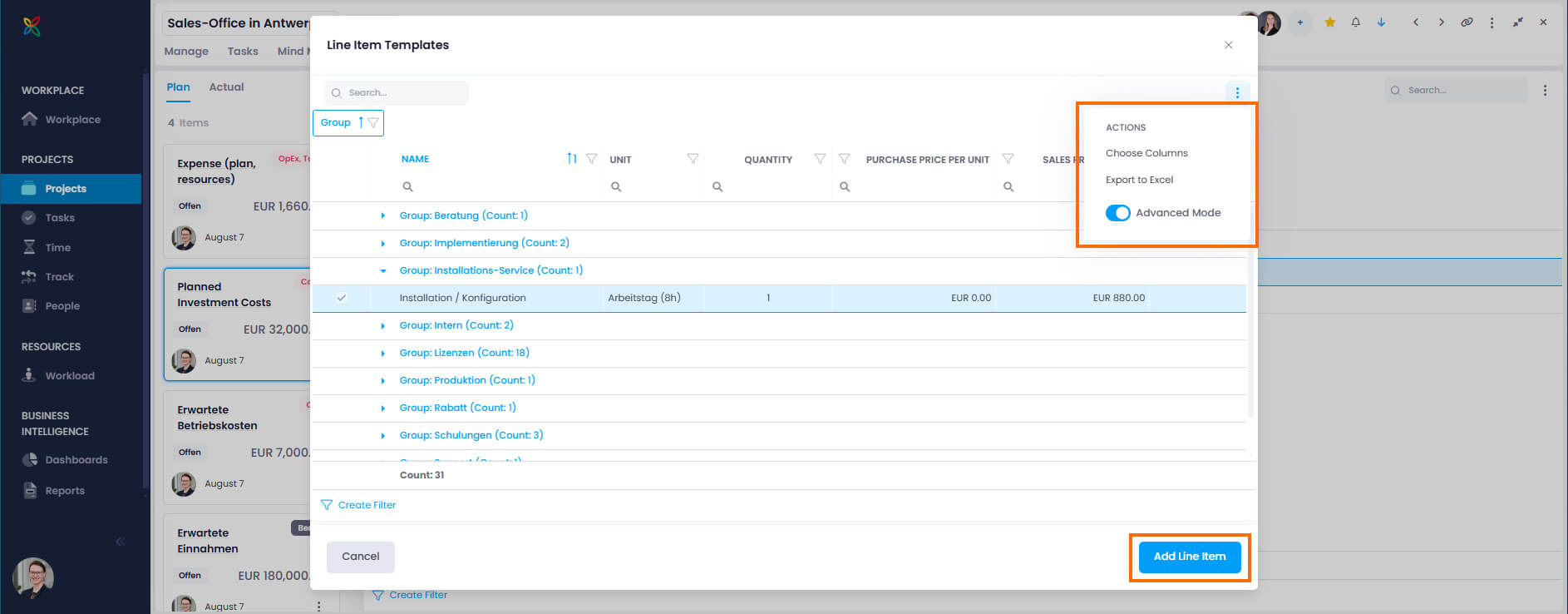
- In the Line Item Templates window, select the budget line item you want to add and click Add Line Item. To add multiple items, hold Ctrl, select the items, and click Add x Line Items.
Managing Templates
In the project financials, you can directly:
- Download templates
- Delete templates (if you are the InLoox account admin)
- Click the Templates button and then Manage Templates.
- Click the download icon to download a template.
- Click the trash can icon to delete a template (requires admin permissions).
Save a Financial Plan or Line Items as a Template
You can save an existing plan or a list of line items as a new template:
- Select the plan and click the Templates button.
- Click Save current budget as template.
- Name the new template and click Save.
The new template now appears in the list of templates. In the InLoox account settings under Organization › Financials, you can further edit this template if you have admin permissions.
Customize the Line Item Templates List
You can add columns to the templates list:
- Click the three-dot menu in the upper-right corner and select Choose Columns.
- Drag and drop the columns you need into your list.
To sort, filter, and group the list, enable Advanced Mode via the three-dot menu.