Create Planned Expenses in the Project
tip
Read the articles Financials Overview and Fundamental Data for Financial Plans before you start creating expense and benefits plans.
In the project, click on the Financials tab. Under Planned, you will already find an Operational Expense Plan (OpEx, Planning) that InLoox creates automatically based on the project tasks, their estimated effort, and group.
Create a New Operational Expense Plan (OpEx)
- Click on the three-dot menu and select Add Operational Expense Plan (OpEx).
- InLoox creates the Operational Expense Plan (OpEx), which you can rename.
- Select this expense plan and click New Line Item. InLoox creates a new expense entry that you can edit by clicking into the respective fields.
- The expense plan card displays the total amount of planned expenses, which updates automatically when you modify existing items or add new ones.
Create a New Capital Expenditure Plan (CapEx)
- Under Financials, click Planned and then click the three-dot menu.
- Click Add Capital Expenditures Plan (CapEx).
- InLoox creates the expected Capital Expenditure Plan (CapEx), which you can rename.
- Select the new Capital Expenditure Plan (CapEx) and click New Line Item to create individual items.
- Alternatively, you can copy and paste an existing item. Select the entry, click the purple copy icon, and then the purple paste icon
 . This feature has been available since InLoox 11.14 (September 2024).
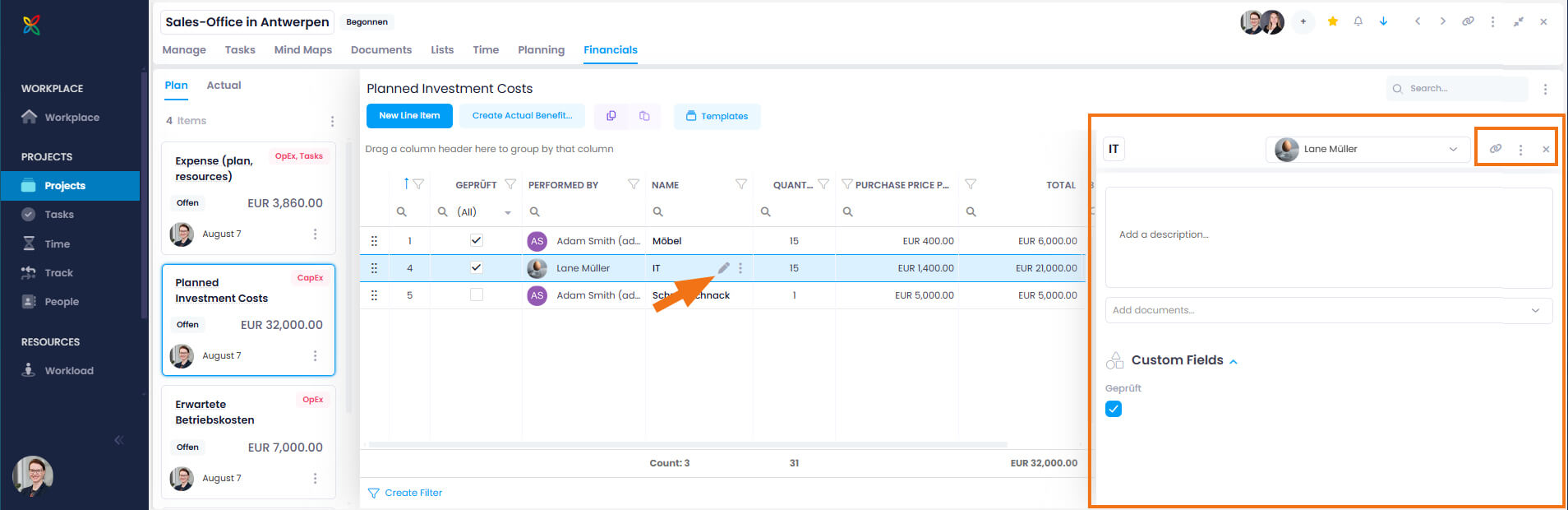
 - To edit the data fields of the new item, double-click directly in the respective field. Alternatively, click the edit icon (pen symbol) to open the side panel, where you can:
- Rename the line item
- Change the resource allocation
- Add a description
- Add documents
- Change the quantity, unit, or sales and purchase prices
- Use custom fields for budget line items
- Copy the link to this line item
- Delete the line item
info
Using the Linked Items feature, you can connect the budget line item to relevant items from the current or other projects in InLoox — such as tasks, time entries, mind map nodes, or planning elements. The links are bidirectional, allowing you to jump directly to the connected content at any time.