Reports
InLoox reports help you prepare and export project information in a structured format — for example, for controlling purposes, external stakeholders, or individuals who do not have access to your InLoox account.
Two types of reports are available:
- Single project report — Create a report within a project for that specific project.
- Multi-project report — Create a report that spans multiple projects.
Single project reports in InLoox Self-Hosted require an update to InLoox 12.2 (released July 22, 2025).
Generate a Single Project Report
-
Open a project.

-
Click the report icon in the upper-right corner to open the Create Report dialog.
-
Select a layout from the available report templates:
- Cover Letter
- Expenses & Income
- Meeting
- Budget Overview
- Document List
- Memo
- Planning Overview
- Project Start
- Project Status
- Project Completion
- Revenue List
- Time Recording
-
Use the additional tabs (Tasks, Planning, Time, Budgets, Parameters) to set restrictions and include or exclude specific criteria.
-
Click Create Report. You will receive an email notification once the report is ready. Access it under Reports in the main menu.
Parameters in Reports
Since InLoox 11.17, you can define custom parameters for reports. Data queries based on parameter variables are only executed when the report is actually generated — this allows for dynamic filtering at runtime.
Generate a Multi-Project Report
There are three options for creating multi-project reports:
- Customize included standard reports
- Use the InLoox Report Designer for fully custom reports
- Import, export, and manage report templates
Navigate to InLoox Web App → Reports in the left-hand menu.

Standard Reports
Click the New report button.

Select a layout from the same options listed above.
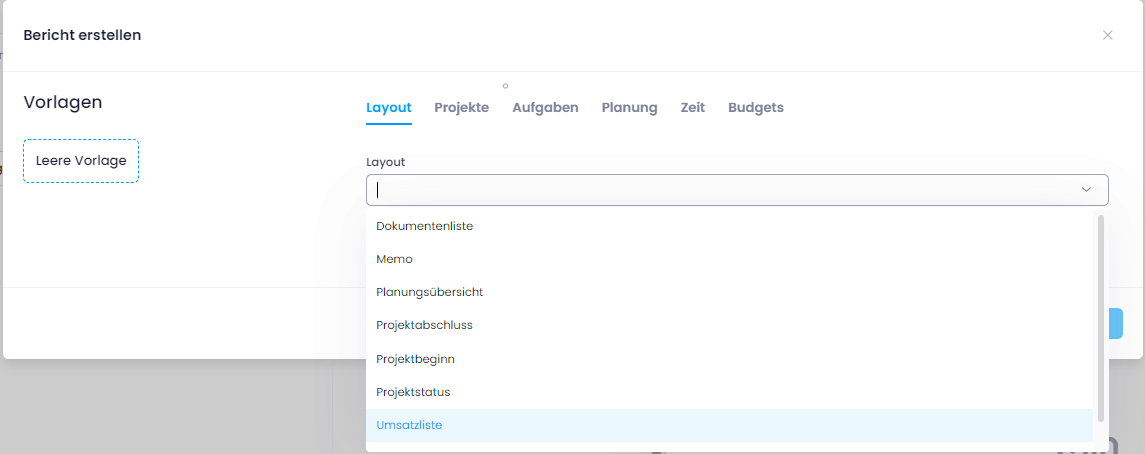
Use the tabs (Projects, Tasks, Planning, Time, Budgets) to set restrictions and filter criteria.
To filter by project name, enter the desired name under "Project name must contain".
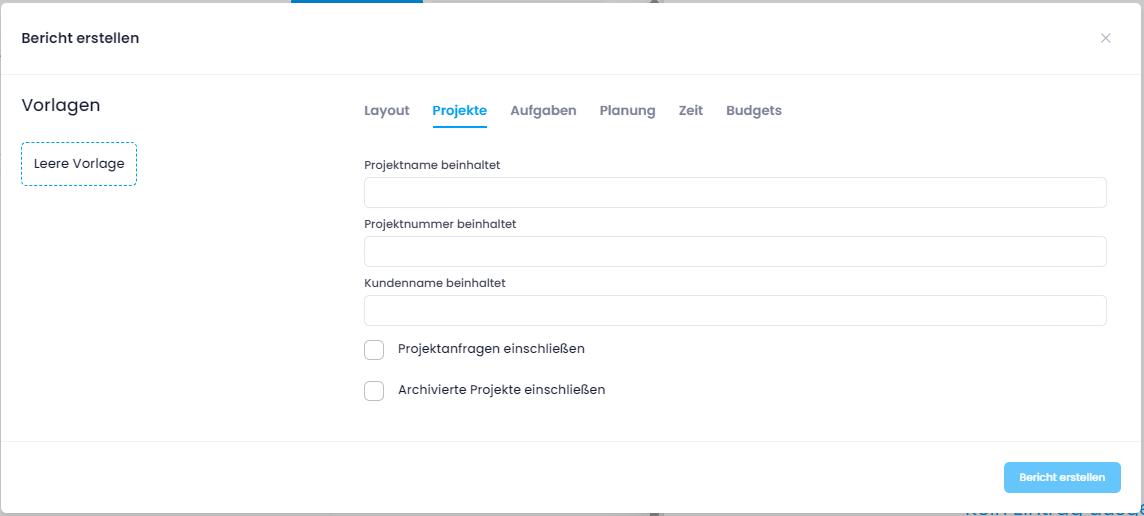
Click Create Report. You will receive an email notification once the report is ready.
Individual Reports with the Report Designer
Click the Layout Designer button to open the full report designer interface.

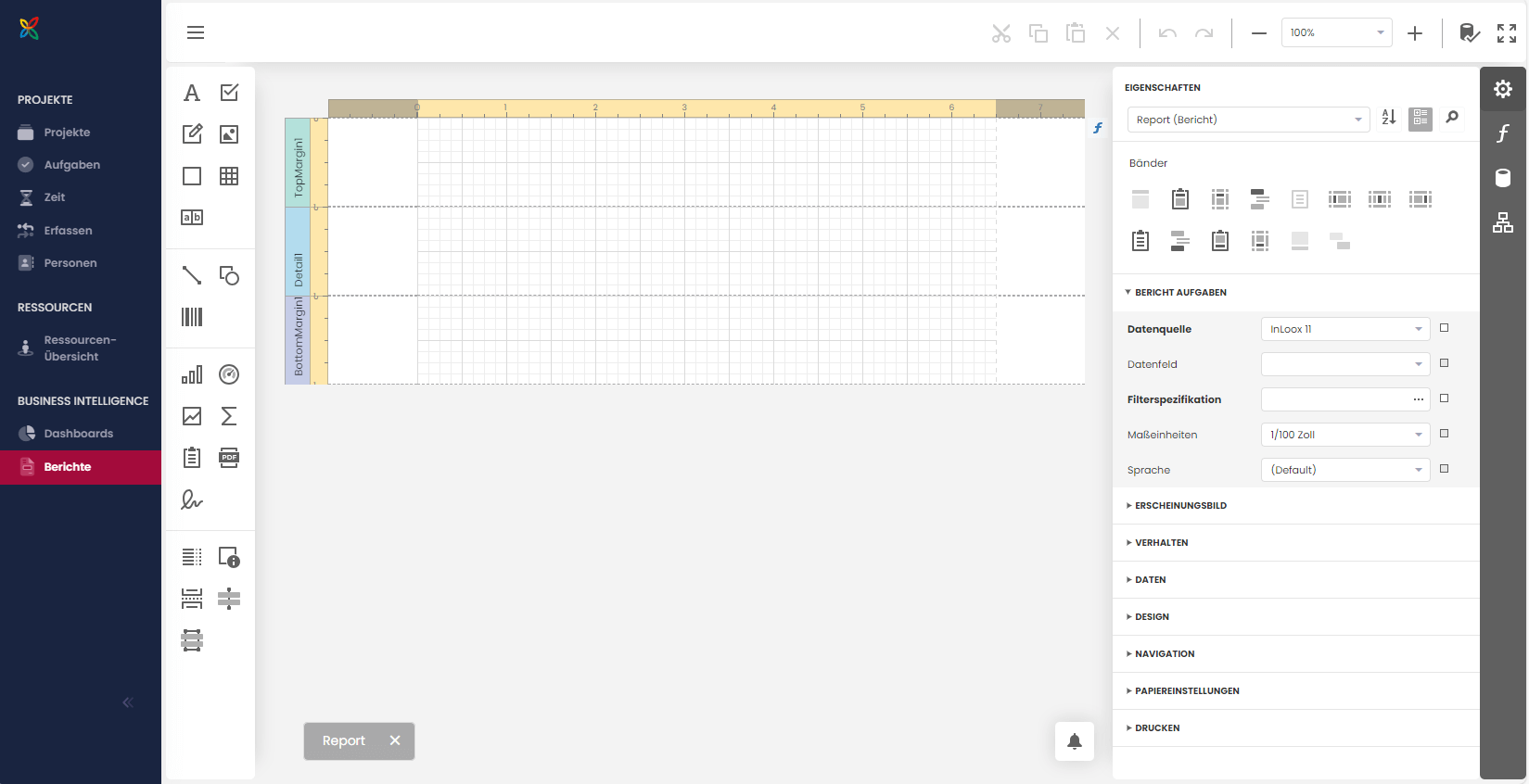
The designer interface is divided into several sections:
| Area | Description |
|---|---|
| Top toolbar | General commands — cut, copy, delete, undo/redo, zoom |
| Top left (☰ menu) | Organizational tasks — new, open, save, close, and the report wizard |
| Center | The report canvas with bands. Drag report elements (text, images, tables, charts) from the left panel. Edit element properties on the right panel. |
For getting started with the Report Designer, we recommend a training session — either in-person or online.
Report Templates: Import, Export, and Manage
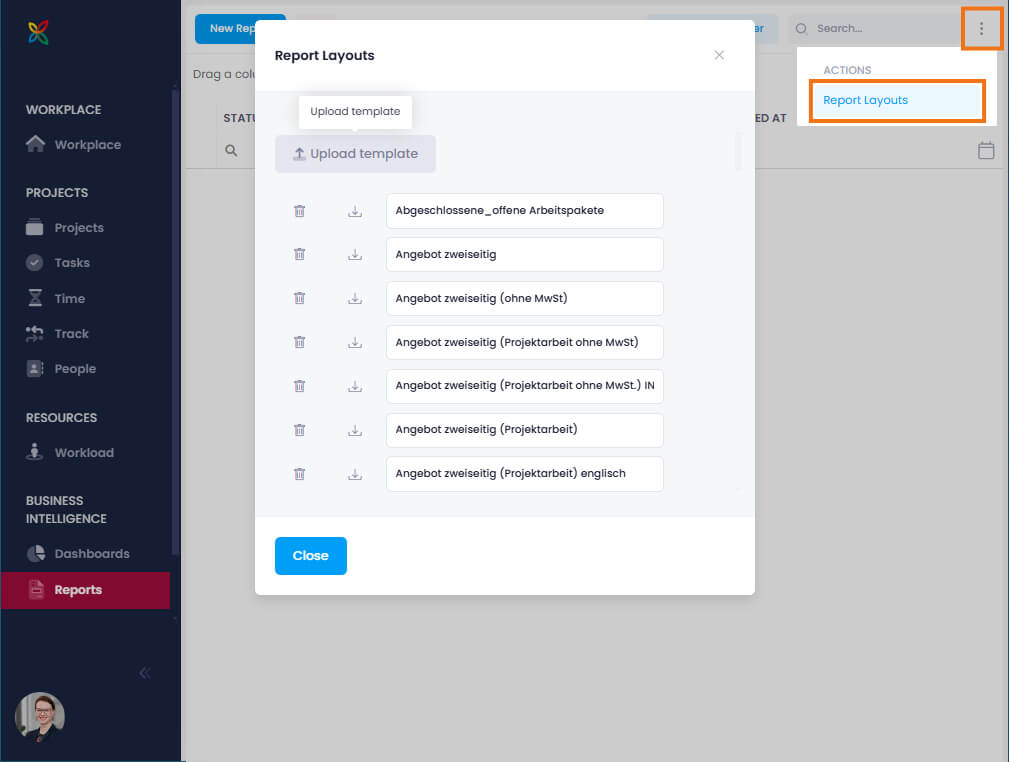
- Under Reports, click the three-dot menu (⋯) and select Report layouts.
- Click Upload template to import a new template.
- Enter the report name and click Save.
- Download an existing template via the download icon.
- Delete a template via the trash icon.
- Rename a template by typing directly in the name field.