Setup and Structure
Set up the InLoox for Outlook add-in
There are several ways to load the add-in into your Outlook. Please refer to the installation guide for detailed instructions.
First steps in the InLoox for Outlook add-in:
- Click Open InLoox Add-in in the Outlook menu bar at the top. The InLoox for Outlook side panel opens.
- You can pin the side panel so that it is always available.
- Log in to your InLoox account — either with your email/password combination or via your Microsoft 365 credentials, depending on your chosen setting.
- That's it! You can now see your data with your current and upcoming tasks in the side panel.
Structure of the InLoox for Outlook add-in
The InLoox for Outlook add-in adds a side panel to your Outlook.
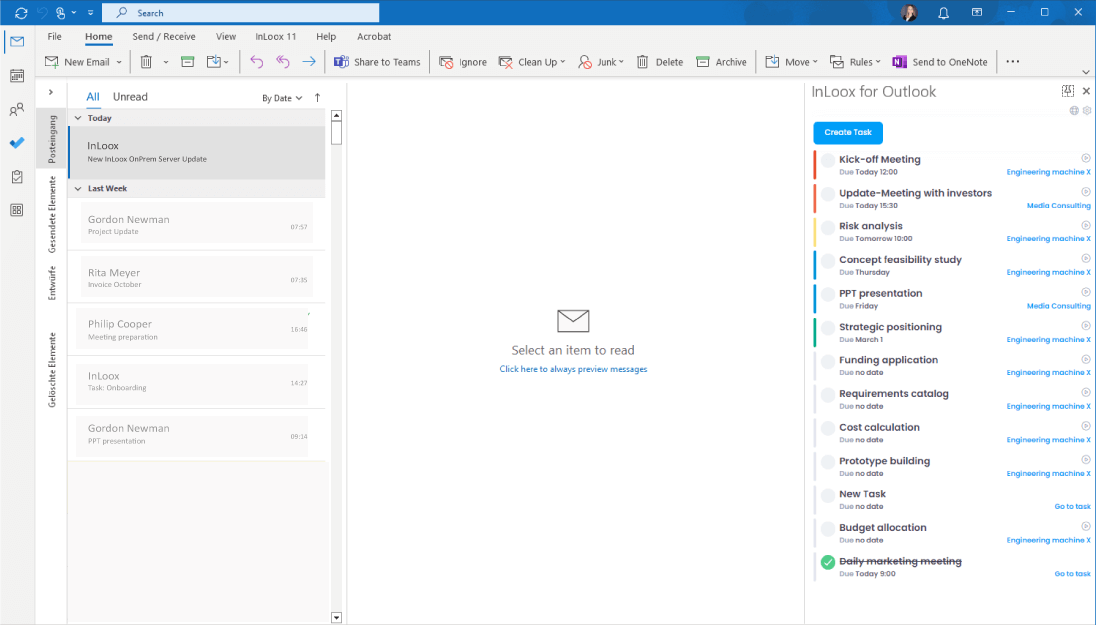
This side panel serves as your personal workspace, giving you a comprehensive overview of your current and upcoming tasks. Tasks are sorted by due date so you can easily see which ones have priority.
At the top, you can also see which email is currently selected and whether the stopwatch is actively tracking time for a task.

In the upper-right corner, you will find two icons:
- Globe icon: Opens the InLoox Web App in your browser.
- Gear icon: Takes you to your profile, account settings, user invitations, and account switching.