Document Management
Save emails and attachments in projects
note
Since InLoox 11.17, you can save emails as .eml files. This also preserves all attachments as they are contained in the .eml file.
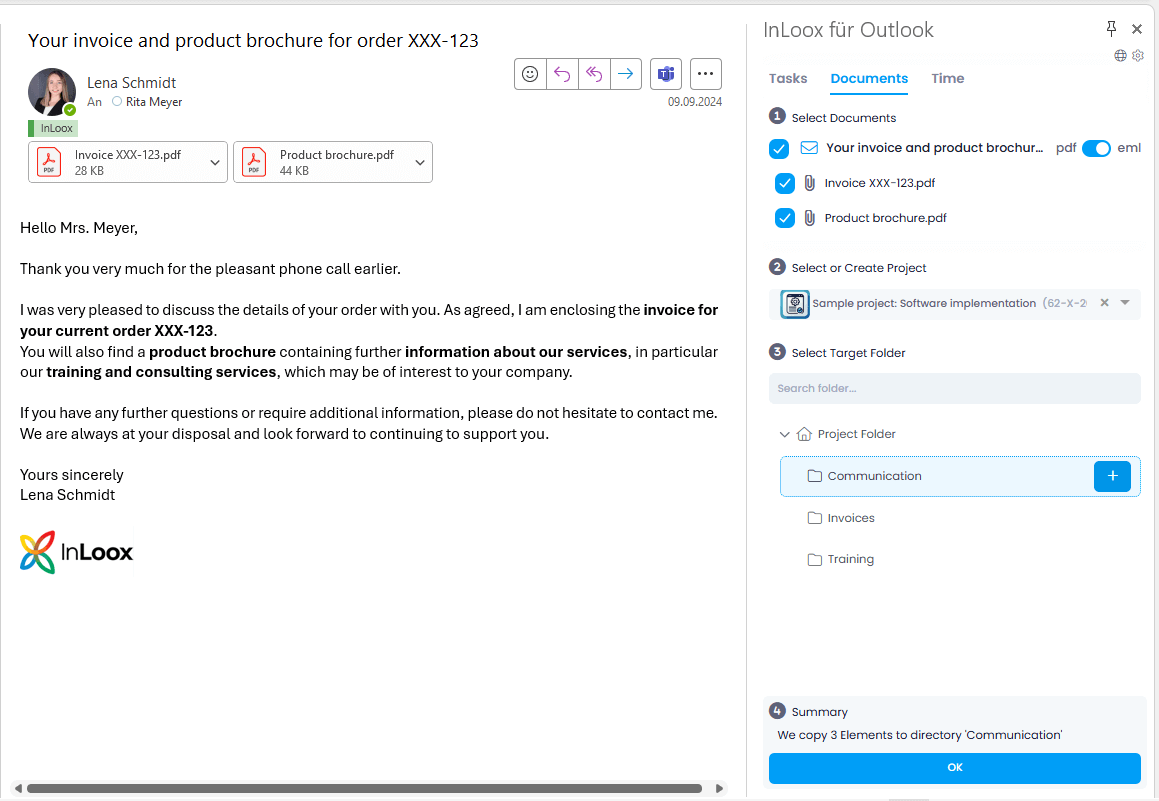
To save emails and/or email attachments in your InLoox projects:
- Navigate to the Documents tab in the InLoox for Outlook side panel.
- Select which documents you want to save — for example, the entire email (in PDF or .eml format) or only individual or all email attachments.
- Select an existing project for storing the documents. You can also create a new project.
- Select the target folder. You can use the search function or create a new folder.
- Click OK. A progress bar at the bottom of the screen shows the upload status.
Save email attachments in tasks
You can also store email attachments directly in a specific task:
- Open the task where you want to save the document.
- Drag and drop the document onto the task to save it there.
warning
This currently only works in the classic version of Outlook, not in the new Outlook.