InLoox AI Assistant
The InLoox AI Assistant helps you quickly identify tasks in emails, generate project descriptions, and suggests a list of tasks to plan out your projects. The InLoox AI Assistant is currently available in:
- Email functionality in InLoox Web App
- Project description generation in InLoox Web App
- Project tasks generation in InLoox Web App
- Turn emails into tasks functionality in InLoox for Outlook Modern Add-in
Requirements for using AI features in InLoox
The AI functionality is currently only available in the InLoox Cloud for Professional (limited usage) and Enterprise Editions.
- Activation of AI assistance (enabled by default) — To use this feature, AI assistance must be activated for your InLoox account. This setting is enabled by default. An InLoox administrator can disable it in the InLoox settings. For more information, see Privacy Settings.
- Connection with Microsoft 365/Office 365 account — You also need to connect your M365/O365 account with InLoox. Each user can establish this connection via their InLoox Profile Settings, where they also need to activate permissions for data access.
The InLoox AI functionality is provided by Microsoft's Azure OpenAI service, with data centers located within the European Union. This ensures that your data is processed in compliance with strict European data protection guidelines. InLoox has a supplemental agreement with Microsoft guaranteeing that data provided will not be recorded or used for model training. Azure OpenAI processes your data only at the time of the request and does not store it permanently.
Identify tasks in Outlook emails in InLoox Web App
If you have authorized the connection with Office 365 and granted the Read emails in your mailbox permission in your Integration Center, you can generate InLoox tasks from email texts in Email.
- In InLoox Web App, click Email in the left menu. If you are not yet connected to your Office 365 account, click Connect Microsoft Account.
- Under the Inbox tab, select the email you want the AI assistant to analyze.
- Click Identify tasks. InLoox identifies the tasks, estimates the duration (effort), and suggests a completion date.
- Click OK next to each task you want to create in InLoox.
- The new task opens so you can modify details and assign it to a project.
Generate a project description with the AI Assistant
When starting a project, the project description can outline the goal, scope, time span, and estimated budget. The InLoox AI Assistant can generate a project description based on the key points you provide.
- Create a new project in InLoox Web App or open an existing project, then click the Manage tab.
- Enter your key points in the Description field and click the magic wand icon.
- Click Generate project description. You can also leave the description field blank and let the AI Assistant create a description based on the project name alone.
- If you are satisfied with the result, click Append.
- If not, you can edit the text yourself or click Replace to have the AI Assistant create a new description.
AI-generated content may be incorrect. Always fact-check the results.
Generate project tasks with the AI Assistant
This feature is available since InLoox version 11.17 (March 2025) for the InLoox Enterprise Edition only.
After creating a new project and entering the basic project information on the Manage page, go to Tasks.
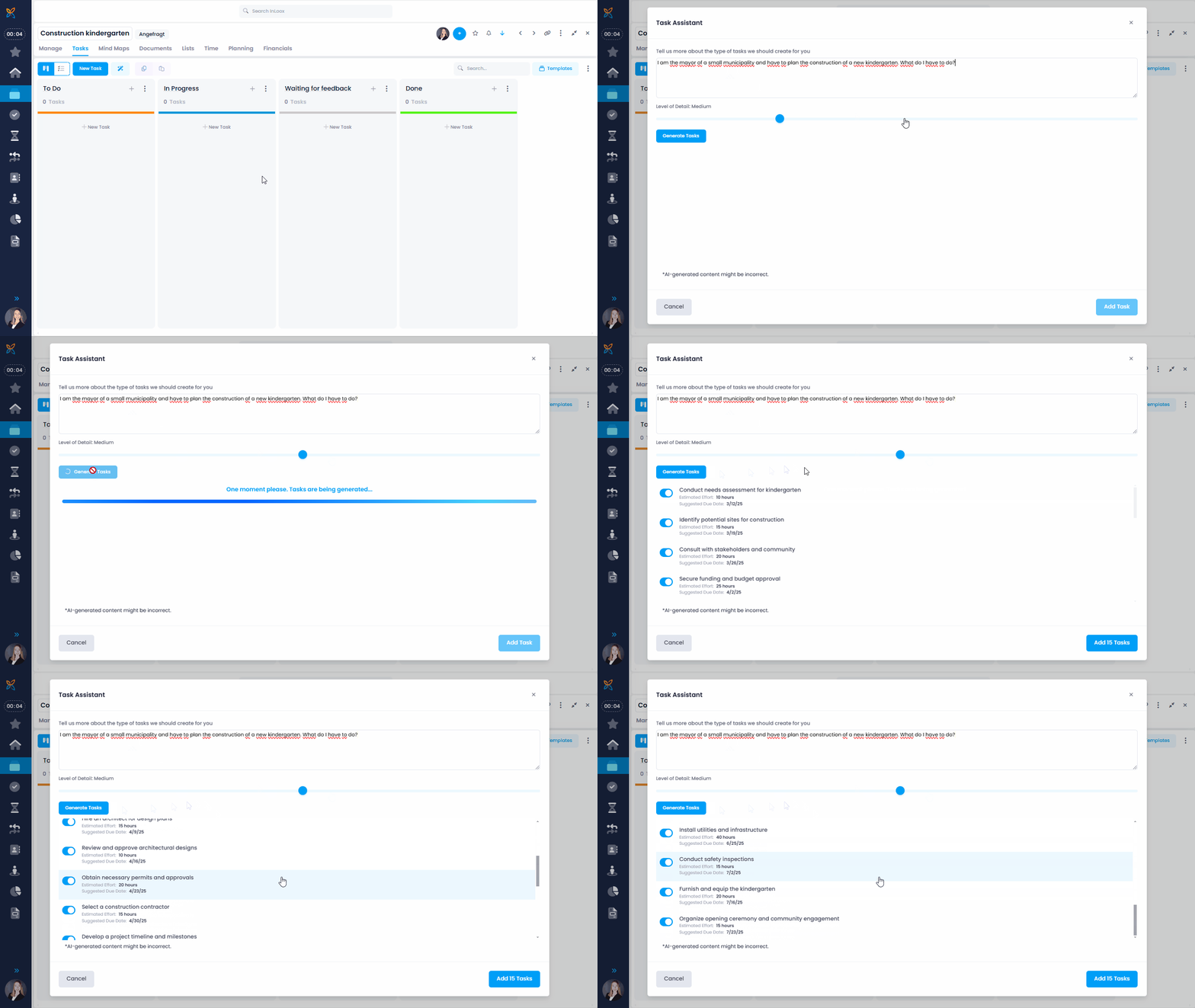
- Click the AI Assistant icon (magic wand) next to the New Task button.
- The InLoox Task Assistant opens. Enter your prompt — for example, describe your project, its goal, and the stakeholders involved.
- On the range picker, define how detailed the AI Assistant should break down the tasks:
- Low — 5 tasks
- Medium (stage 1) — 10 tasks
- Medium (stage 2) — 15 tasks
- High — 20 tasks
- Very high — 25 tasks
- Click Generate tasks and the assistant will get to work. The tasks will include names, planned efforts, and due dates.
- Once you have reviewed the generated tasks, select the ones you want to use and click Add Tasks.
- If you're not satisfied, add more details to your prompt or adjust the detail level.
AI-generated content may be incorrect. Always fact-check the results.
Generate tasks from emails with AI in InLoox for Outlook Modern Add-in
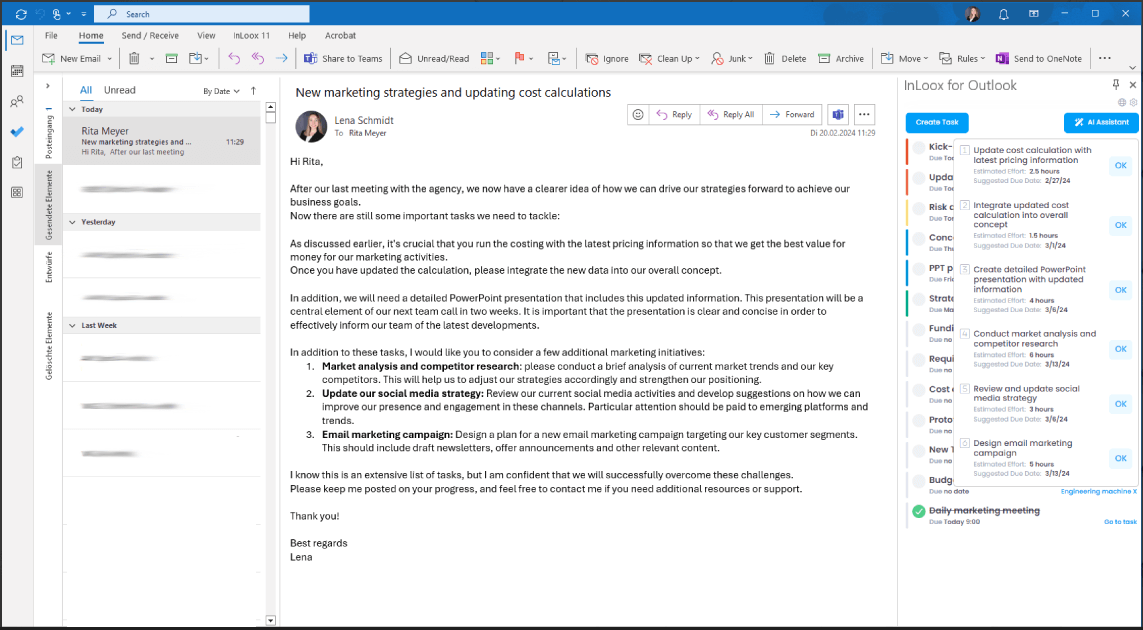
The InLoox AI Assistant in InLoox for Outlook Modern Add-in can analyze emails that potentially contain multiple tasks.
- Select the relevant email from which you would like to receive task suggestions.
- Click the AI Assistant button. You will receive suggestions for possible tasks, including an estimated effort and a recommended due date.
- To create a suggested task, click the OK button next to it.
- The task now appears in your task list and can be edited with a click.