Workplace
Once you have successfully logged in to the InLoox Web App, you land directly on the Workplace. You can also navigate to it at any time using the menu on the left.
How the Workplace Is Structured
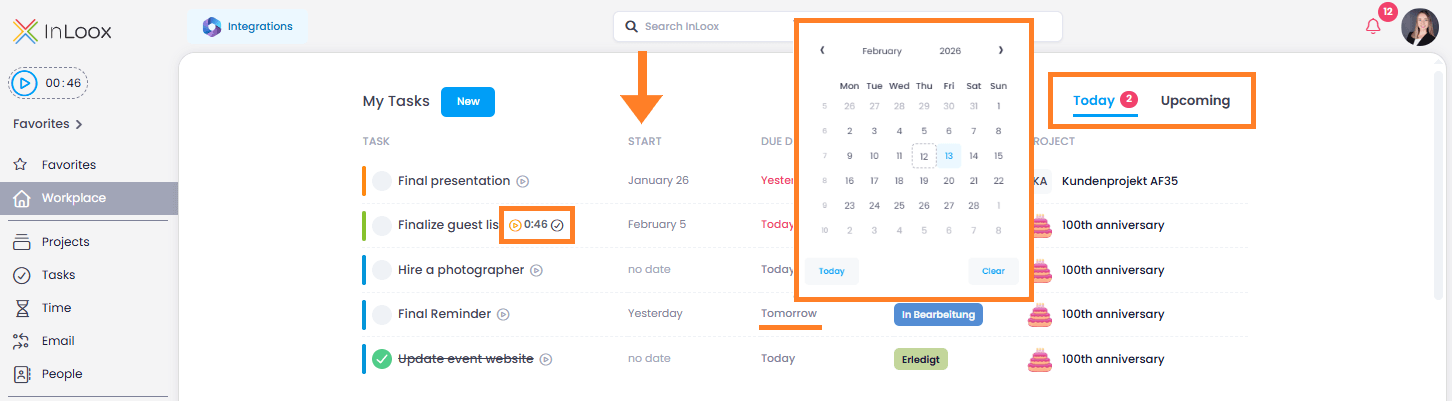
- In the upper section, you will find your task list labeled My Tasks. This includes both your project-independent tasks and project-specific tasks where you are assigned as a resource.
- Below that, you will find another task list labeled Delegated Tasks. This list only appears if you have created a task and assigned it to someone else.
Tasks are sorted by start date in ascending order. You can change the due date inline. The project name is clickable and opens the tasks directly within the associated project. Next to the task name, you can use the stopwatch icon to record and log work time, provided the task is assigned to a project.
Click on any task to edit details such as the description, start and end dates, or the project assignment. You can also add comments and track changes made to the task.
Creating a Personal Task
You can create personal, project-independent tasks in the Workplace. These tasks are assigned to you by default and are not linked to any project.
- In InLoox Web App, click Workplace in the left menu.
- Click New at the top and enter the task name. Fill in additional details such as start/end date, task description, or effort estimate.
- If the task should be a recurring task, select the frequency in the Repeat field.
Flag Emails in Outlook to Create InLoox Tasks
- Your InLoox account is connected to your Microsoft 365 account.
- Permission Create tasks from flagged emails is granted.
- Optional: Permission Update flags in emails is granted to keep flags synchronized between InLoox and Outlook.
If you flag an email in Outlook by clicking the flag icon, a personal task is automatically created in InLoox under Workplace. Right-click the flag icon to set a due date, for example tomorrow.
If you have activated the optional permission Update flags in emails, the email in Outlook will be marked as completed as soon as you set the task status to completed in InLoox.
Assigning a Personal Task to a Project
To move a personal task to a project:
- In InLoox Web App, click Workplace in the left menu.
- Open the task and click the arrow in the Project field to select a project from the drop-down menu.
- Alternatively, type the project name in the Project field and select the correct one.
- To remove the project assignment, click the X in the Project field.
These changes are recorded in the task's Activities under the Changes tab, allowing you to track when the task was moved and by whom.
Filtering by Task Status
Filter the task list by status by clicking one of the status buttons:
- Today — All tasks that are currently in progress, due today, or overdue.
- Upcoming — All tasks with a future due date or no deadline at all.
To edit a task, simply click on it. The task opens and you can adjust the details as usual.
To jump directly to a project and view all its tasks, click the project name on the far right.