InLoox for Microsoft Teams
The InLoox integration for Microsoft Teams gives you direct access to your project information — right inside Teams. The interface mirrors InLoox Web App, with the main menu items (Workplace, Projects, Tasks, Time, Workload, and more) arranged horizontally at the top instead of in the sidebar. Editing your projects works the same way as in InLoox Web App; all features are fully available.
For details on individual features, refer to the help articles for InLoox Web App in this documentation.
Install the InLoox App in Teams
Make sure that sideloading of apps is enabled in your Teams admin settings. This is typically handled by your IT administrator. In the Teams Admin Center, there is an option to allow sideloading for your organization or specific teams.
There are several ways to install the InLoox app in Microsoft Teams:
- Self-installation directly in Microsoft Teams
- Self-installation via the Microsoft AppSource
- Installation by the Microsoft Teams admin
Self-installation in Microsoft Teams
You need one of the InLoox cloud editions (InLoox Professional, InLoox Enterprise, or InLoox Enterprise Plus) with Microsoft Teams.
-
Open Microsoft Teams.
-
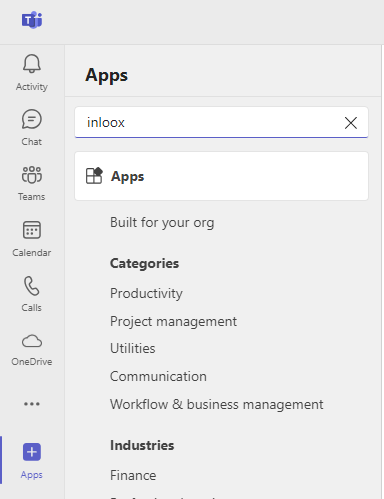
Click Apps in the bottom-left corner. In the search bar, search for InLoox.
-
Click Add for the InLoox app.

-
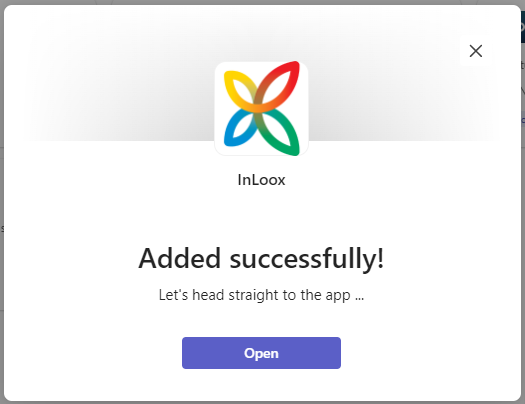
After the installation completes, the message "Added successfully" appears. Click Open.
-
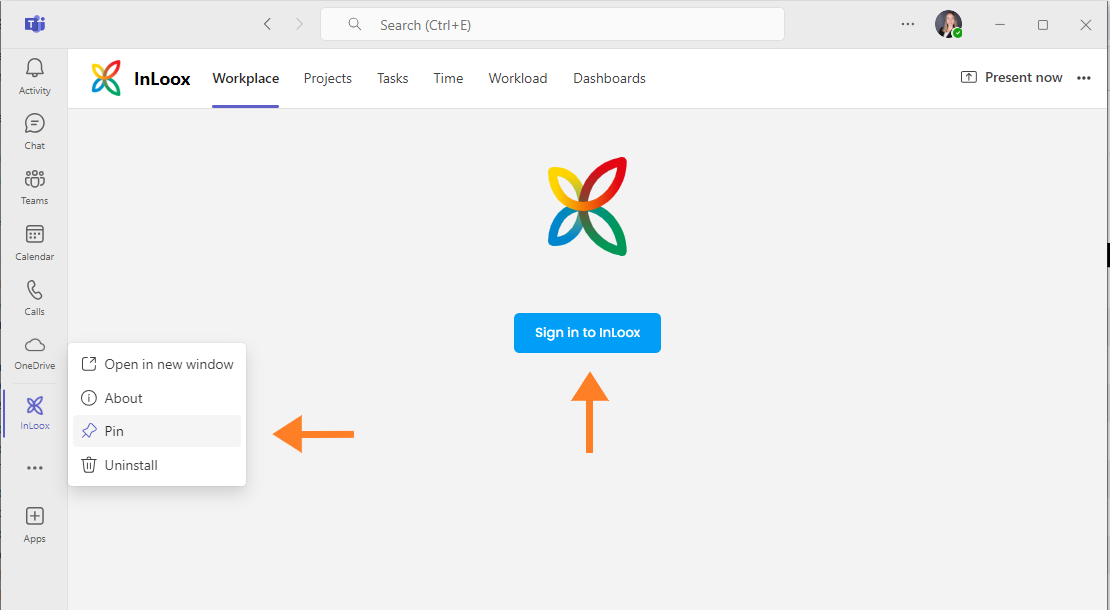
InLoox now appears in the app bar on the left. The app opens automatically.
tipTo keep the app permanently visible in the app bar, right-click the InLoox icon and select Pin.
-
Click Sign In to InLoox and log in with your credentials.
Self-installation via the Microsoft AppSource
You need one of the InLoox cloud editions (InLoox Professional, InLoox Enterprise, or InLoox Enterprise Plus) with Microsoft Teams.
-
Go to https://appsource.microsoft.com/en-us/product/office/WA200007797. Alternatively, search for InLoox in the Microsoft AppSource.
-
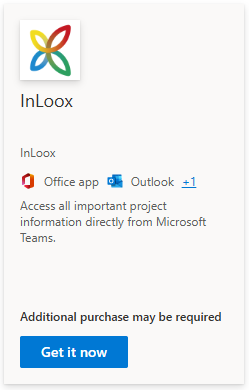
For the InLoox app (not to be confused with InLoox for Outlook, which is a separate app), click Get it now.
-
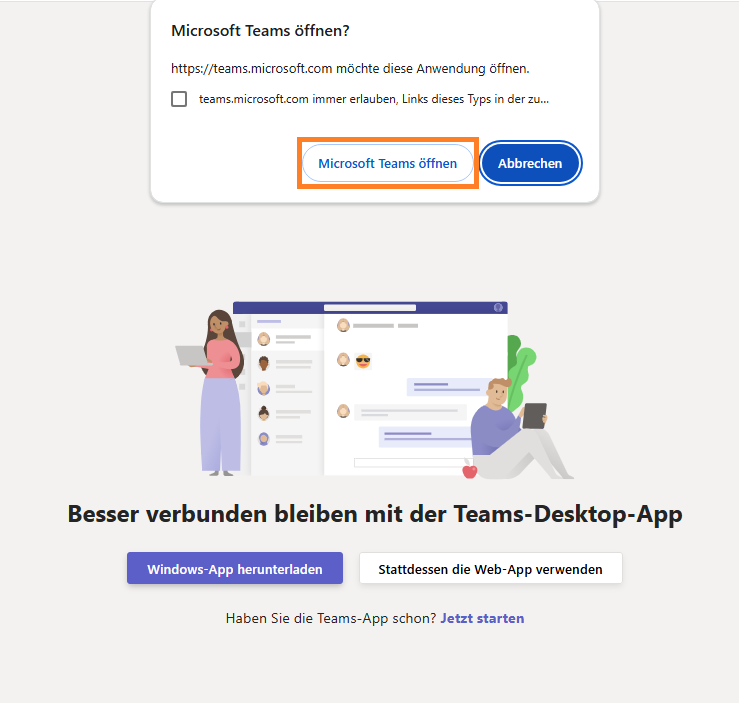
You will be redirected to Microsoft 365. Click Open Microsoft Teams. Alternatively, you can use the web app. InLoox will be installed automatically in Microsoft Teams.
-
After the installation completes, InLoox appears in the app bar on the left.
tipTo keep the app permanently visible in the app bar, right-click the InLoox icon and select Pin.
-
Click Sign In to InLoox and log in with your credentials.
Installation by the Microsoft Teams admin
You can also upload the InLoox app as a custom app in Teams.
You will need the ZIP file for the InLoox for Teams app, which contains all required components such as the manifest and associated resources. Administrators can download this file from the InLoox account settings under Integrations.
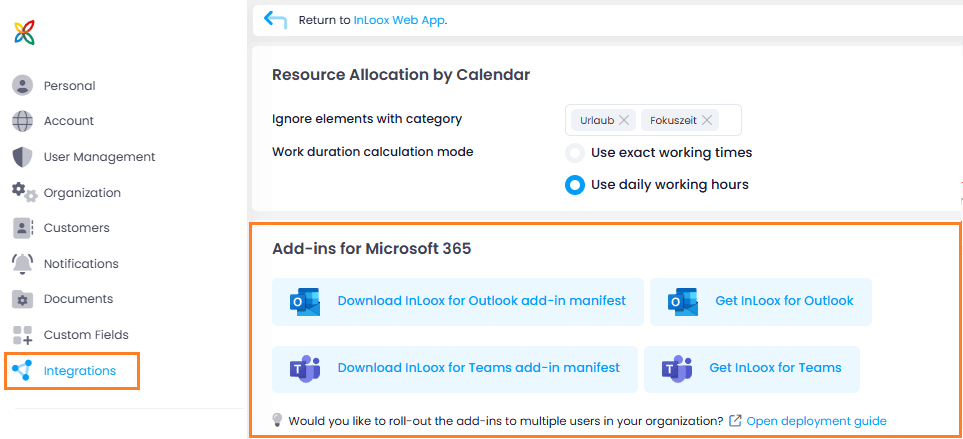
To install the app:
-
Open Microsoft Teams.
-
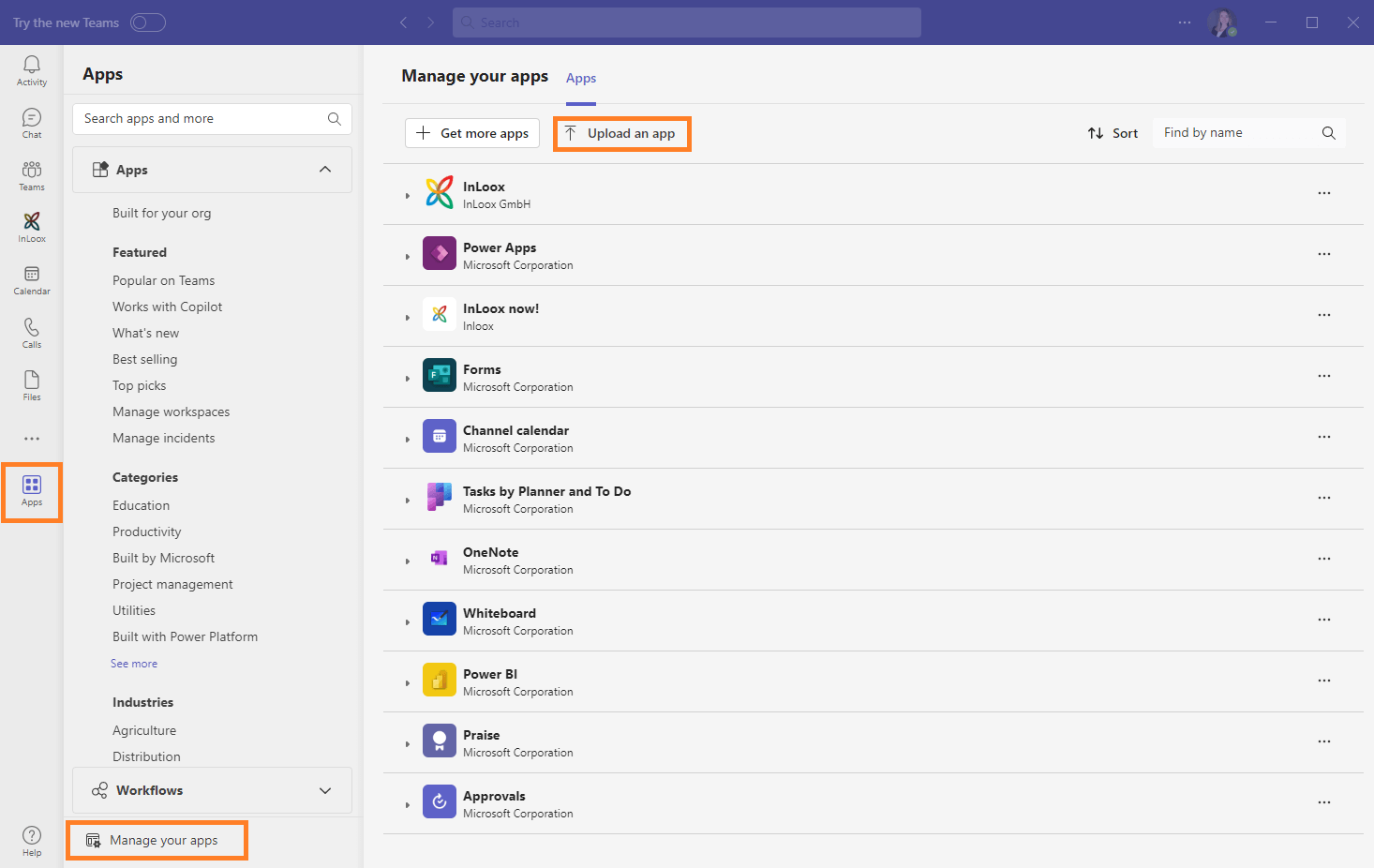
Click Apps in the bottom-left corner.
-
In the app store, select Manage your apps at the bottom left, then click Upload an app. The exact labels may vary depending on your version of Teams.
-
Select Upload a custom app and navigate to the ZIP file on your computer. Select the file and confirm the upload.
-
You may be asked to confirm certain permissions or settings. Follow the on-screen instructions to complete the installation.
-
After the installation completes, InLoox appears in the app bar on the left or under Apps.
tipTo keep the app permanently visible in the app bar, right-click the InLoox icon and select Pin.
-
Click Sign In to InLoox and log in with your credentials.